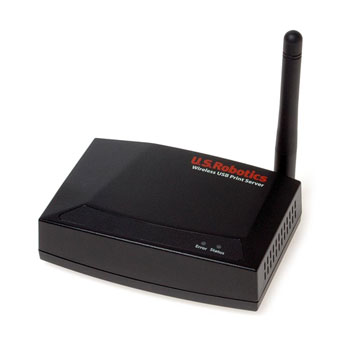
US Robotics Wireless Printserver 805421
Scan code: LN15330
Manufacturer code: 805421
End Of Life

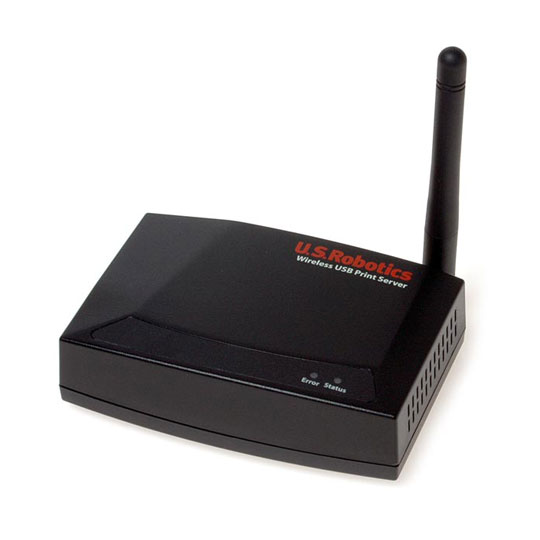

US Robotics Wireless Printserver 805421
US Robotics Wireless Printserver, Connect your USB printer to a network
Scan code:
LN15330
Manufacturer code:
805421
This product is no longer available to purchase.
Email me when the availability or price changes
- SCANPROTECT Protect against installation damage for 28 days.
Product Overview
The Wireless USB Print Server, USR5436, can be used in any home or office network environment to share a USB printer via an Ethernet network or a wireless network. By using the USB Print Server to connect a USB printer to a wireless or Ethernet network device, such as a wireless router or a switch, the USB printer can be shared by each user on the network without having to tie up the resources of one computer to act as the dedicated print server.
Features • DIAG: Use this button to either print a diagnostic page or to restore the factory default settings.
• Print diagnostic test page: Press and hold this button for two (2) seconds to print out a diagnostic page containing the Wireless USB Print Server settings.
• Reset/Restore Factory Default Settings: To restore the factory default settings and print out a diagnostic page containing the default setting information, unplug the power supply of the Wireless USB Print Server, press and hold in the Diagnostic button, and plug the power supply back in. Continue to hold in the Diagnostic button for 10 seconds to restore the factory default settings.
• USB Port: Use this port to connect a USB printer to the Wireless USB Print Server.
• LAN Port: Use this port to connect the Wireless USB Print Server to a router, switch, or other Ethernet network device.
• POWER: Use this port to connect the power supply to the Wireless USB Print Server.
Features • DIAG: Use this button to either print a diagnostic page or to restore the factory default settings.
• Print diagnostic test page: Press and hold this button for two (2) seconds to print out a diagnostic page containing the Wireless USB Print Server settings.
• Reset/Restore Factory Default Settings: To restore the factory default settings and print out a diagnostic page containing the default setting information, unplug the power supply of the Wireless USB Print Server, press and hold in the Diagnostic button, and plug the power supply back in. Continue to hold in the Diagnostic button for 10 seconds to restore the factory default settings.
• USB Port: Use this port to connect a USB printer to the Wireless USB Print Server.
• LAN Port: Use this port to connect the Wireless USB Print Server to a router, switch, or other Ethernet network device.
• POWER: Use this port to connect the power supply to the Wireless USB Print Server.
US Robotics Wireless Printserver 805421
![US Robotics Wireless Printserver 805421]()