


Blackmagic Design Fairlight Live Audio Panel 20
Blackmagic Design Fairlight Live Audio Panel 20, 20 Motorised Faders, Touchscreen Displays
Email me when the availability or price changes
Finance this product
- From £90.65 / month (APR 16.9%) for 48 months or 0% for 4 months
- With a 10% deposit from just £80.30 / month (APR 15.9%)
Blackmagic Fairlight Live Audio Panel 20

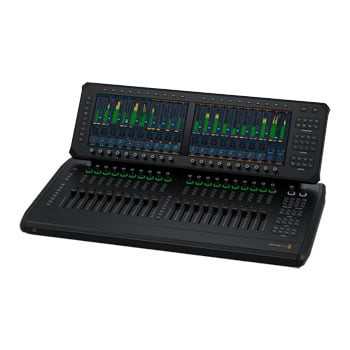
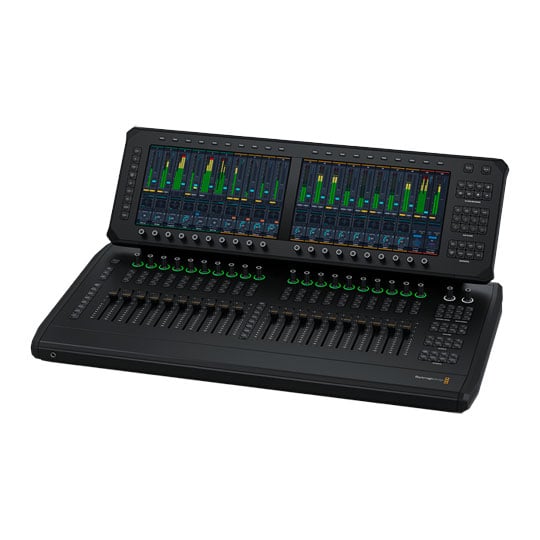
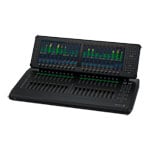
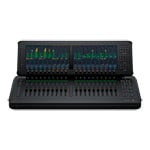
Professional Live Audio MixingThe Blackmagic Design Fairlight Live Audio Panel 20 is a professional desktop audio control surface with 20 motorised faders and 2 large touchscreen displays, purpose-built for precise live audio mixing in Fairlight Live workflows. With dedicated controls for layers, bus, matrix, aux, VCA, sub-masters and talkback, this compact Fairlight Live Audio Panel 20 gives broadcast engineers, streamers and studio producers fast, hands-on access to complex mixes while staying fully integrated with the world’s most powerful software-based live audio mixer.
Tailor Your Production

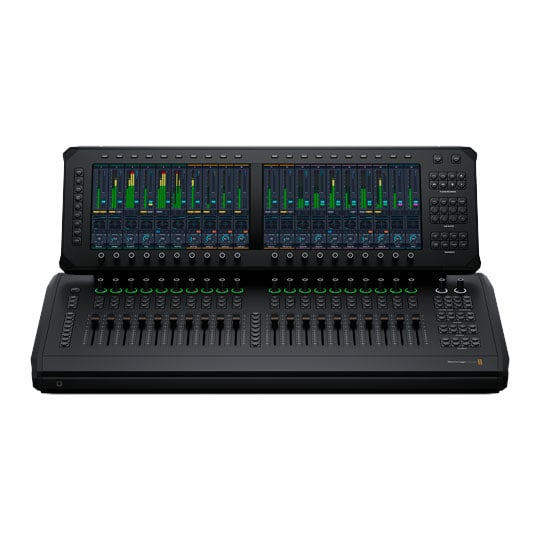
Channel StripsFairlight Live audio panels feature customizable channel strips that you can tailor to each production. Every strip includes a motorized fader, solo, mute, and select buttons, plus a rotary encoder for fast access to channel functions. The bright LCD touch screen display keeps channel status and identification clear, while upper deck controls let you adjust additional parameters without interrupting your workflow. Assign any strip to any track or bus, and a single strip can control multiple tracks or buses simultaneously. This flexible design gives you an efficient and organized way to manage productions of any size, from small shows to large-scale live broadcasts with hundreds of channels.
Dedicated LCD Touchscreens

LCD Touchscreen DisplayEach group of 10 channel strips has a dedicated LCD touchscreen, giving you a comprehensive graphical display of your audio mix. By default, it displays all channel VU meters and mixer status at a glance. When you select a function, the display shifts into a task-based view with a split layout. The upper section shows selected parameters, the bottom displays level controls. Soft menu buttons and encoders adjust the selected function. Adjust plugins, assign channels to busses, control the cue player, manage monitoring, configure layers, and set spill zones via the touchscreen. You can control complex live mixing tasks in one place without navigating to separate menus during live production.
Upper Deck Function Buttons

Fast AccessUpper deck function buttons give you fast access to channel processing and routing tools including EQ, dynamics, plugins, panning, and bus assignments. When you select a function, the menu buttons, encoders, and touchscreen automatically adapt to show relevant controls and parameters. The display updates in real time, giving visual feedback on adjustments. Function buttons work with soft menu buttons to navigate parameter pages, keeping advanced mixer functions organized and accessible. The home button returns the LCD to the default VU meter and mixer status display. The upper deck lets you respond quickly during live production, making key adjustments faster than mouse-based mixing.

Soft Menu ButtonsThe soft menu buttons let you access essential mixer functions such as EQ, dynamics, plugins, panning, and bus assignments. They are also used to navigate through parameter pages, keeping advanced controls organized and accessible during live mixing.

Upper Deck EncodersUpper deck encoders give you precise control over your selected parameters. Working with the touchscreen and soft menu buttons, they let you adjust EQ, dynamics, plugins, panning, and routing with accurate, hands-on adjustments during live mixing.

Channel ModeChannel mode gives you an all-in-one overview of input processing for each channel including mic gain, trim, balance, delay, and high pass filter, alongside main dynamics, EQ and pan. This combines familiar Fairlight workflow with modern controls.

EQEQ function mode lets you shape sound using six bands, including high pass and low pass filters. Bands two through five cover low to high frequencies, with frequency, width, gain, and make up gain controls to quickly adjust the selected channel.

CompressorUse compressor mode to shape dynamics directly in the upper deck. Adjust threshold, ratio, knee, mix, make up gain, attack, hold, and release while viewing a real time graph. You get precise control over level consistency and overall sound character.

Gate/ExpanderAccess this dynamics duo with a soft menu button toggling between gate and expander. Parameters include threshold, range, ratio, attack, hold, and release. Gate reduces low level noise, expander increases dynamic range for cleaner, controlled audio.

LimiterLimiter function mode provides precise control over peak level using makeup gain, threshold, attack, hold, and release. It prevents overload by clamping peaks in real time, ensuring clean, controlled audio without distortion in live production.

Plug-insThere are 4 insert slots per channel, accessed via plug-ins. Enable or bypass effects from the touchscreen or physical controls. Chain FX expands each slot to six effects, so you can build complex processing chains with up to 24 plug-ins per channel.

3D PanPlace sound exactly where you need it with pan mode. Encoders and soft controls adjust left right, front back, up down, rotate, spread, divergence, and boom. Visual feedback helps you position sources across stereo, surround, and immersive formats.

AssignManage channel routing quickly from assign mode. View connections to main, sub, aux, and mix minus busses, then make changes with a single touch. Clear visual feedback helps you route signals efficiently during fast moving live productions.

HomePress home to instantly return to the default meter display. All onscreen channel strips align with the faders, giving you a clear view of levels across the mixer. It’s the fastest way to regain a complete overview of your mix during live production.
Lower Deck Left Side

Your Command CenterThe left side of the lower deck serves as your command center for channel strip functions and mixer navigation. Buttons include rotary, snap Iso, AFL, spill, fader flip, layers 1 through 6, and ALT. Pressing snap Iso, AFL, or spill temporarily changes the function of the channel select buttons, allowing you to isolate channels from snapshot recall, engage After Fader Listen monitoring, or reveal channels contributing to a selected bus. Rotary opens a floating LCD window where you can assign alternate encoder functions. Fader flip lets you move controls such as aux send levels onto the faders. Layer buttons make it easy to move between channel banks, helping you navigate larger productions.

RotaryPressing the rotary button opens the function selector on the touchscreen. You can assign the channel encoders to L/R pan, F/B pan, U/D pan, mic gain, or trim, giving you direct access to to key channel parameters from the panel.

Snap ISOSnap Iso changes the channel select buttons into snapshot isolate controls. You can instantly choose which channels are excluded from snapshot recalls, making on-the-fly adjustments faster than opening the global recall settings window.

AFLIn PFL or hybrid PFL and AFL mode, holding AFL temporarily converts the channel select buttons into AFL solo controls. You can audition channels or busses after the fader listening without affecting the main mix for greater flexibility while mixing.

SpillHold spill and press select on a bus to instantly display its contributing channels. Channels can be shown beside the fader or in a spill zone. Use arrow buttons to bank through groups making large bus structures easier to navigate.

Fader FlipPress fader flip to move the fader from channel level control to an aux send. The encoder takes over the main level while the touchscreen lets you choose the active aux. This makes it easy to balance monitor and effects sends directly from the fader.

Layer ButtonsFaders are organized in layers of 10 channels. Use layer buttons 1 to 6 for primary sets, or hold Alt to access layers 7 to 12. You get up to 120 channels per 10 faders, with each layer recalling a new group of to keep large mixes manageable.

AltThe ALT button expands your layer workflow by providing quick access to alternate layers 7 -12, instantly resetting faders and encoders. With fast layer switching and level resets, ALT keeps essential controls within reach during live production.
Upper Deck Right Side

Direct Access to Live Production ToolsThe right side of the upper deck gives you direct access to the most important live production tools. Online synchronizes timecode from external sources, while on air turns red when active, locking critical functions to prevent accidental changes. The player recorder lets you record and play back virtual sound checks using armed channels. The cue player provides instant access to audio and MIDI cues for jingles, stingers, and effects. Snapshot controls enable fast preview, recall, update, and creation of snapshots for seamless show transitions. The most important live production functions are grouped so you can move quickly between rehearsal, playback, cue execution, and show automation.

OnlineThe online button enables Fairlight Live to follow an external timecode source, synchronizing audio sources, playback, and recording with your video system. This delivers frame-accurate timing for rehearsals, live production, and broadcast workflows.

On AirOn air turns red when active, locking critical functions to prevent changes during live production. It protects format, channel settings, solo modes, and sync adjustments. On air mode also syncs with ATEM switchers to reflect your program status.
Player & Recorder

Dedicated ControlsThe player recorder section on the right side of the upper deck gives you dedicated transport controls for recording and replaying virtual sound checks. Using locator 1, locator 2, record, rewind, fast forward, stop, and play, you can capture live performances and instantly return to key positions for review. Press view to open the player recorder window on the touchscreen, where transport controls, playback status, and timecode are displayed. Because all armed input channels can be recorded and played back, you can test mixes, refine settings, and rehearse complex productions without performers on stage, saving time while keeping your workflow efficient and repeatable.
Cue Player

Drumroll

Stinger

Applause
The cue player section gives you immediate access to audio and MIDI cues from dedicated controls on the upper deck. Dedicated A/B, MIDI, view, dump, and eight cue trigger buttons let you launch sounds without navigating menus. Switch between banks A and B for up to 16 audio cues, or enter MIDI mode to access up to 16 MIDI cues. Press view to open the cue player on the touchscreen and monitor cue status and playback. Supporting up to 16 simultaneous sounds, the cue player is ideal for jingles, stingers, transitions, sound effects, and show elements. You can trigger cues from the panel, a MIDI controller, or keyboard shortcuts, giving you fast, reliable playback when every second counts.
Snapshots

Storing, Managing, & Recalling ConfigurationsThe snapshot section provides you with dedicated controls for storing, managing, and recalling different mixer configurations throughout a production. Buttons for preview, next, view, load, XFade off, update, and new put key snapshot functions directly at your fingertips. Press view to display the snapshot list on the LCD, or use load to preview upcoming and previous snapshots before recalling them. A snapshot can capture levels, routing, EQ, dynamics, panning, effects, and bus assignments, making it easy to move between different show segments. Crossfade options help create smooth transitions, while update and new simplify ongoing changes during rehearsals and live events.
Control Room

Dedicated Monitoring ControlsThe control room section gives you dedicated monitoring controls for evaluating your mix and checking sources during live production. You can instantly solo channels or busses, with all solo signals routed through a dedicated listen path. Listen adjusts solo monitoring independently from the main monitor volume, while dim reduces monitor level and mute silences the control room output. A source selector allows you to switch between multiple monitoring sources and feed up to three different monitor mixes. During a live broadcast, you can quickly solo a commentator microphone, compare it against the program mix, then return to normal monitoring without affecting the on air signal.
Studio Monitoring

Studio Monitoring ControlsThe studio monitoring controls are a hub for monitoring for talent, guests, producers, and remote production areas. Three independent monitor circuits allow different locations to receive separate audio sources simultaneously. Using the source selector, you can route the appropriate feed to each destination, while dedicated phones controls adjust headphone levels independently. Mute functions allow monitor feeds to be silenced when required. This flexibility is especially valuable during complex productions such as a live talk show, where hosts can follow the program mix while guests receive a separate cue feed, ensuring everyone hears exactly what they need at the right moment.
Masters

Target Individual Groups or CollectionsThe masters section is dual purpose and lets you target individual groups or collections of master channels to either meter views or physical faders. In normal operation, masters will be sent to a set of faders that you have pre-defined on the console. When ‘view only’ mode is active the bus buttons send meter views to the screen, leaving the channel faders focussed on the mix. Bus types such as sub, aux and mix minus can be activated independently or combined as desired. Meters provides detailed metering for all channels. The flexible layouts lets you adapt in real time between high-level mixing, deep-dive signal routing and problem solving as the demands of your live production unfold.
Fast Access to System Functions

GlobalsThe globals section combines dedicated buttons and touchscreen controls to give you fast access to system functions and customizable layouts. Press setup to display layer and master section controls on the touchscreen, where you can assign channels and busses to layers 1 through 12 or configure the master faders for each 10 fader bay to match your panel. Navigate with forward and back, reverse actions with undo, and close windows or exit operations with escape. Three programmable user buttons provide instant access to your favorite settings windows, including auto mix controls, bus contributors, and AFV settings, helping you work faster while keeping essential controls within easy reach.
Talkback

Crystal Clear CommunicationThe talkback section gives you dedicated controls for managing communication throughout live production. The talk buttons provide instant access to four independent talkback groups, allowing you to communicate with talent, announcers, crew members, and production staff. The talk channel select button extends communication beyond the talkback groups by letting you talk directly to an individual channel using that channel's select button. View opens the talkback window on the LCD for onscreen talkback mic adjustments. Supporting both latched and momentary operation, these controls streamline sound checks, talent coordination, and live production communication from a dedicated control section.
Connections

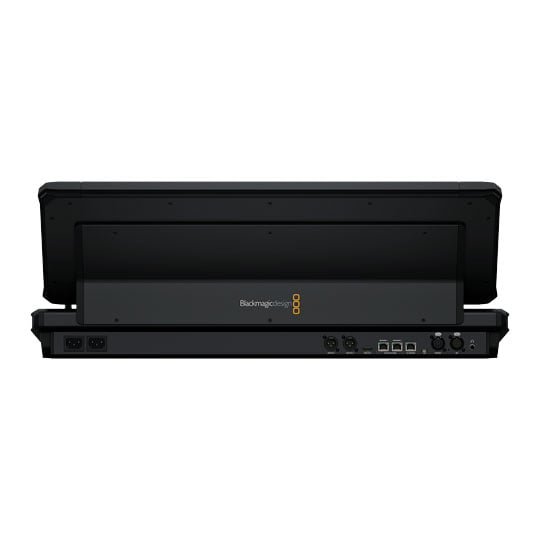
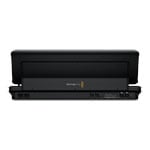
Dual 10G Ethernet PortsAll Fairlight Live Audio Panels include dual 10G Ethernet ports for SMPTE 2110 IP audio, and a 1G Ethernet control port for connecting to the computer with Fairlight Live software installed. You can also connect and power your computer via USB-C. The audio I/O includes 2 balanced XLR outputs for speakers, a 5-pin XLR for headset and mic, and a 1/4" headphone jack on both the front and rear of the panel. There’s also an HDMI output for video monitoring when you are using a 2110 IP network. With support for Core Audio, ASIO, Windows audio, and SMPTE 2110, you can connect laptops, audio interfaces, as well as ATEM switchers for flexible live production workflows.
PayPal Credit
| Monthly Payment: | £291.26 |
| Instalment Rate: | 16.9% p.a. (fixed) |
| Cost of purchase: | £3,214.80 |
| Total inc. interest: | £3,495.01 |
| Monthly Payment: | £156.98 |
| Instalment Rate: | 16.9% p.a. (fixed) |
| Cost of purchase: | £3,214.80 |
| Total inc. interest: | £3,767.31 |
| Monthly Payment: | £112.58 |
| Instalment Rate: | 16.9% p.a. (fixed) |
| Cost of purchase: | £3,214.80 |
| Total inc. interest: | £4,052.63 |
| Monthly Payment: | £90.65 |
| Instalment Rate: | 16.9% p.a. (fixed) |
| Cost of purchase: | £3,214.80 |
| Total inc. interest: | £4,350.71 |
| Example | |
| Minimum Spend: | £99 |
| Instalment Rate: | N/A |
| Cost of purchase: | £99 |
| Total inc. interest: | £99 |
Representative Example:
Purchase Rate: 23.9% p.a. (variable)
Representative: 23.9% APR (variable)
Assumed Credit Limit: £1,200
Subject to status. Terms and Conditions apply.