Home Networking Devices

Home networking is an umbrella term that refers to devices connected to wired and wireless networks within a home environment. This most commonly includes desktop PCs, laptops, mobile phones, storage, TVs, media streamers and games consoles.

This guide will walk you through what is needed to create a home network, the ways of connecting devices, and the considerations that make a home network efficient and secure. For more information on connected cameras, lighting, heating and alarm systems, read our dedicated Smart Home Buyers Guide.
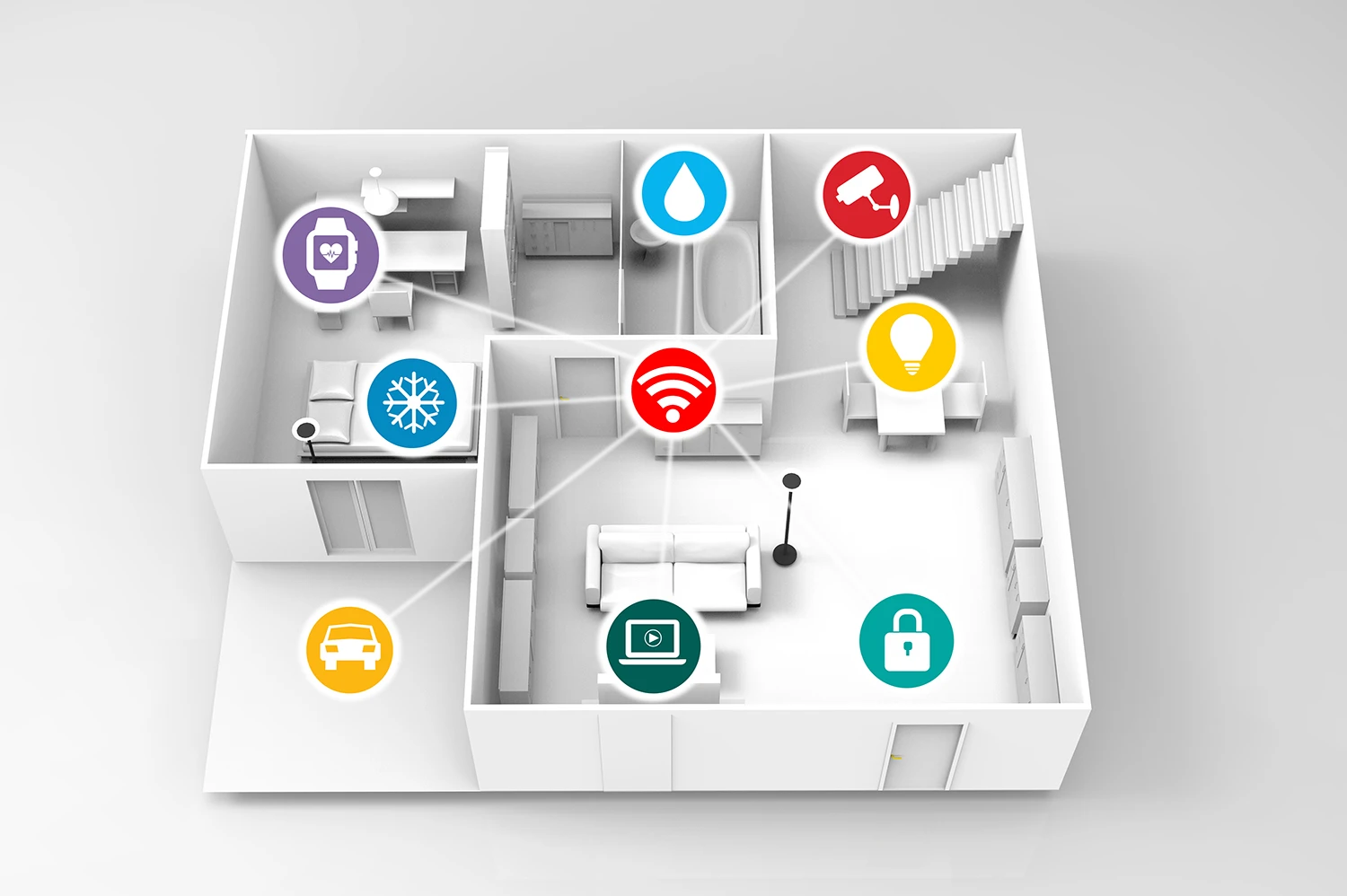
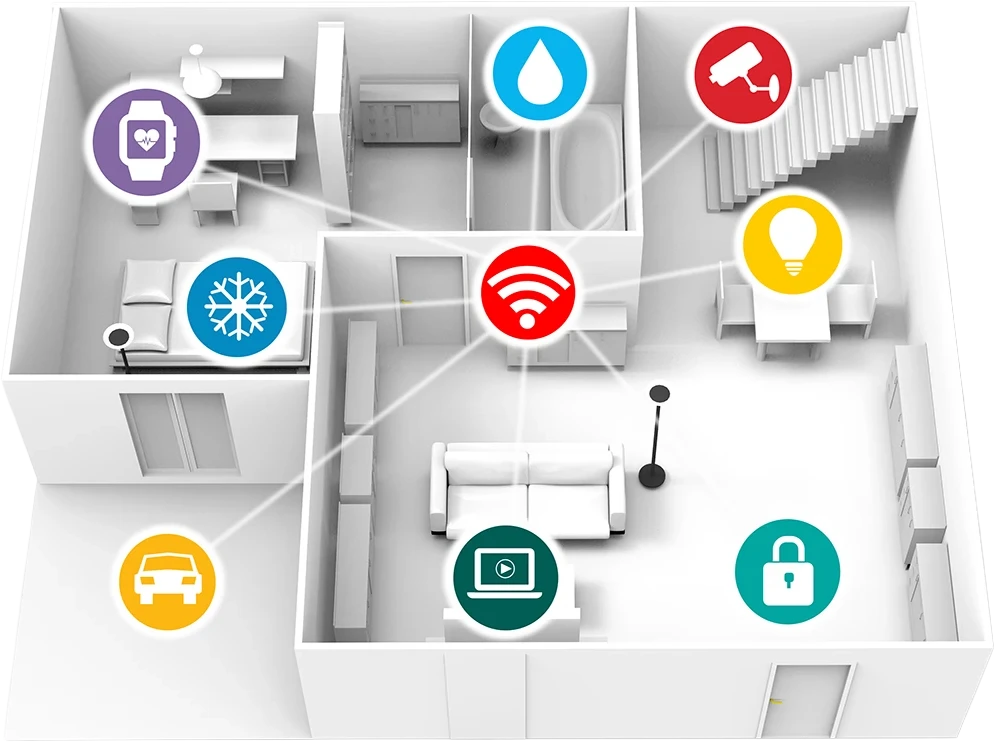
Smart home devices connected to a home network

What is a Home Network?

At the heart of every home network is the router. This is the device that connects everything within the home, wired or wirelessly, to the outside world and in most cases the Internet.

Whenever you subscribe to an Internet Service Provider (ISP), they will provide a router that typically features a wireless access point for Wi-Fi enabled devices and several Ethernet ports for wired devices. Although ISP-provided routers have improved in recent years, upgrading can deliver faster Ethernet port speeds, better wireless coverage and additional features.

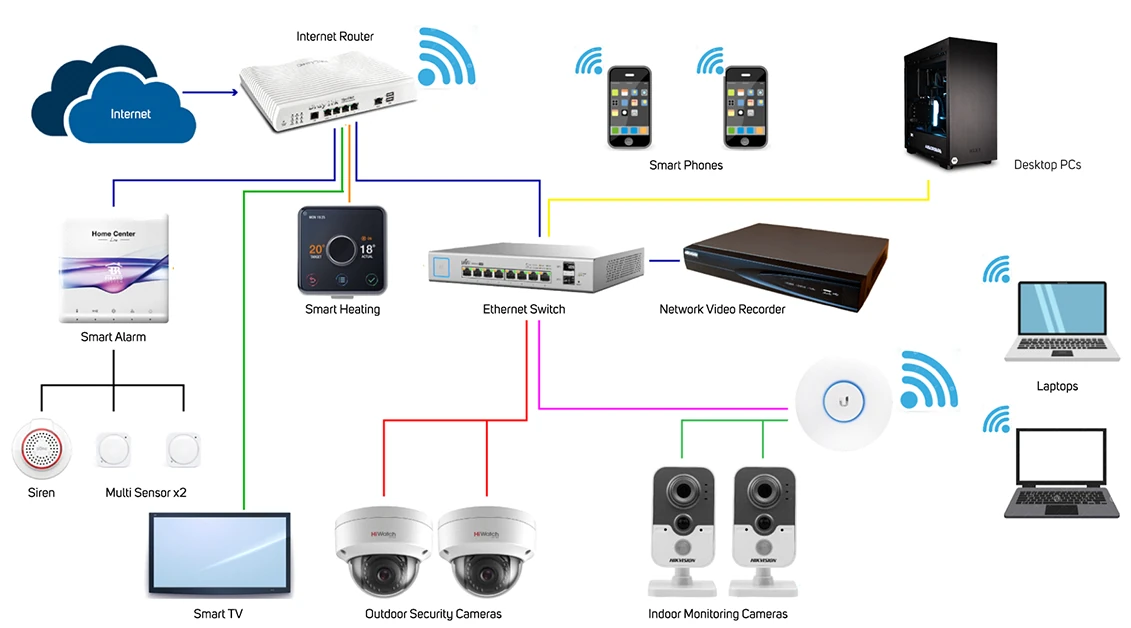
In today's connected home there is a vast range of network-enabled devices. Smartphones are designed to be mobile and are therefore wireless. Other devices, such as lighting or heating control hubs, often require a wired connection to the router. Some devices, including smart TVs, offer both wired and wireless options for convenience.

Diagram of a home network connecting devices through a router

Wired vs Wireless

In essence, both wired Ethernet and wireless Wi-Fi connections do the same job. However, there are several factors to consider when choosing which connection type to use for each device.

Ethernet

Ethernet is the common wired networking protocol in a home environment. It has been around since the 1970s and network speed is measured in bits per second, commonly shown as Mb/s for megabits per second and Gb/s for gigabits per second.

Ethernet generations by IEEE standard, maximum data rate and maximum range
Generation IEEE Standard Maximum Data Rate Maximum Range
Ethernet 10BASE-T (802.3i) 10Mb/s 100m
Fast Ethernet 100BASE-TX/FX (802.3u) 100Mb/s 100m
Gigabit Ethernet 1000BASE-T (802.3ab) 1000Mb/s or 1Gb/s 100m
Multi-gigabit Ethernet 2.5GBASE-T (802.3bz) 2.5Gb/s 100m
Multi-gigabit Ethernet 10GBASE-T (802.3an) 10Gb/s 100m

Many older ISP routers use the 100Mb/s standard, although newer models may feature Gigabit Ethernet ports. Almost all after-market routers now feature Gigabit Ethernet ports, reflecting the increase in Internet-enabled devices and the larger files and images being transferred across home networks.

Which Connection Should You Use?

Wireless connections can look like the obvious choice because of convenience, higher quoted speeds and reduced cable clutter. The full picture is more nuanced. Wireless networks use radio waves, so they are more prone to interference and require strong security. Quoted wireless data rates are theoretical maximums affected by bandwidth, frequency, building construction, antenna power and the number of connected wireless devices.

In contrast, wired Ethernet uses a physical cable, is not prone to radio interference and is inherently more secure. In practice, wired and wireless should be seen as complementary technologies that suit different device types.

Recommended wired or wireless connection by type of home device
Type of Device Recommended Connection Reasons
Desktop PC Wired More reliable connection especially if used for work
Laptop PC Wireless Ability to connect anywhere in home
Smartphone Wireless Ability to connect anywhere in home / garden
TV Wired More reliable connection especially if streaming 4K services
Games Console Wired More reliable connection especially if playing online games
Heating / Lighting Hub Wired Wired connection often required to router so hub can then create its own wireless mesh to connect to bulbs / thermostats
CCTV Cameras Wired / Wireless Wired connections more reliable for HD video / Wireless offers more flexibility of camera location
Alarm Systems Wired Wired connection often required to router so alarm control box can then create its own wireless mesh to connect to window / door sensors
Door Entry Systems Wireless Convenience of location and connection to wireless smart phone
Smart Assistants Wireless Convenience of location and not very data intense
Smart Appliances Wireless Convenience of location and not very data intense

Wireless routers often feature multi-band options to relieve congestion, and network switches feature quality-of-service controls to help prioritise different types of network traffic - more on these technologies on the router and switch tabs below.

Home Network Infrastructure

The tabs below explore the components needed to build a home network.

Routers

The router enables both wired and wireless connections between devices in the home and to the outside world. It has two distinct elements: a wireless access point that allows devices to connect wirelessly, and an Ethernet switch that allows wired devices to connect via cables.

The wireless access point is enabled by external antennas, commonly two, three or four, although some routers may use as many as eight to transmit the wireless signal around the home.

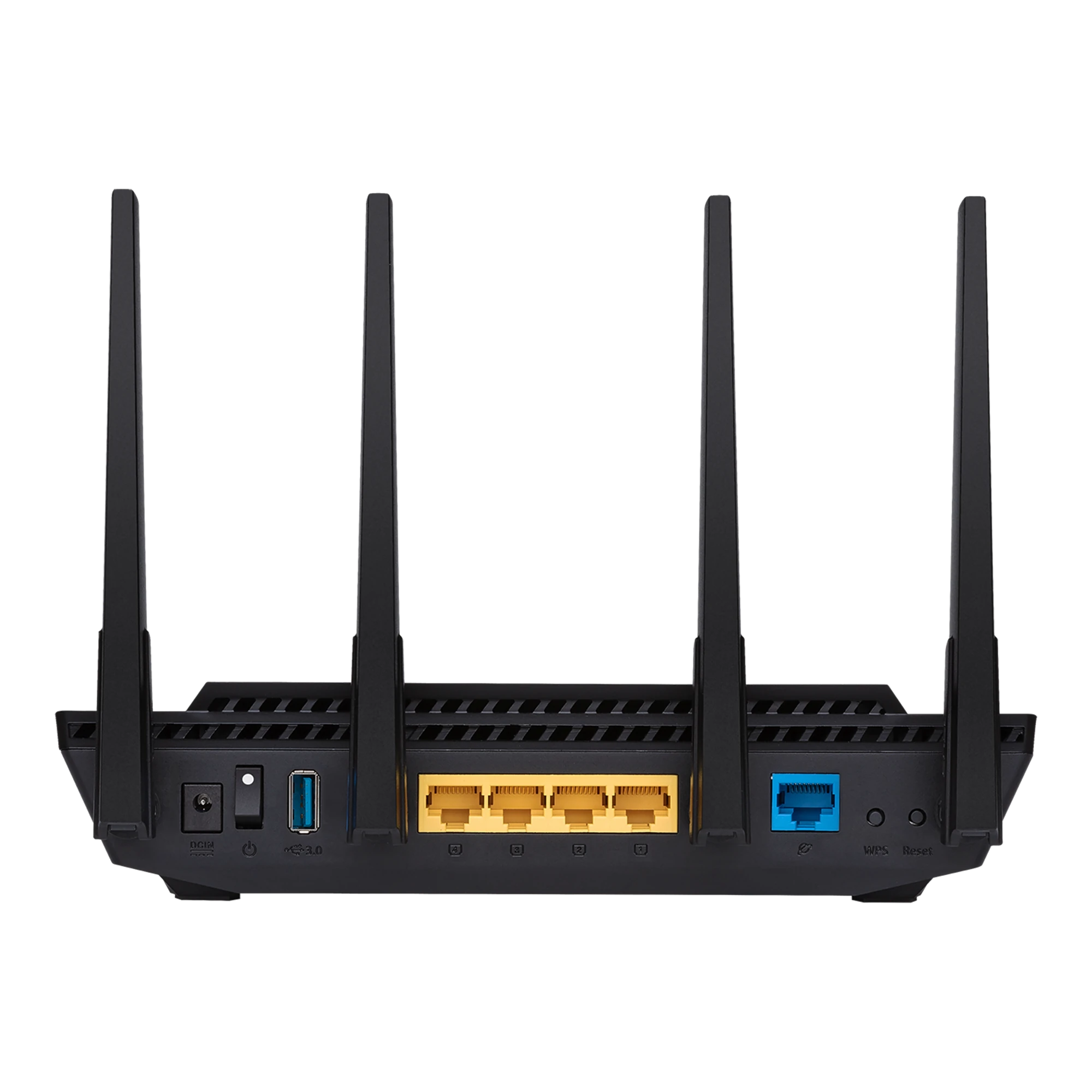
Most routers provide multiple LAN ports for local devices and a WAN port for connecting to the ISP modem or broadband line. Entry-level routers may use 100Mb/s LAN ports, while mid-range and high-end routers can provide 1Gb/s, 2.5Gb/s or faster ports. A USB port may also be present, allowing shared access to a USB storage drive.

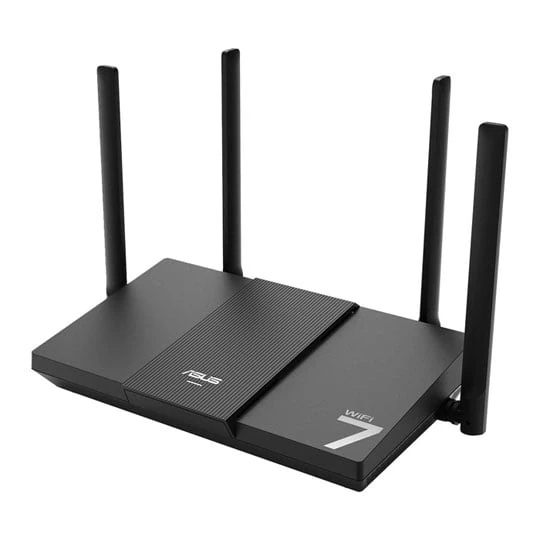
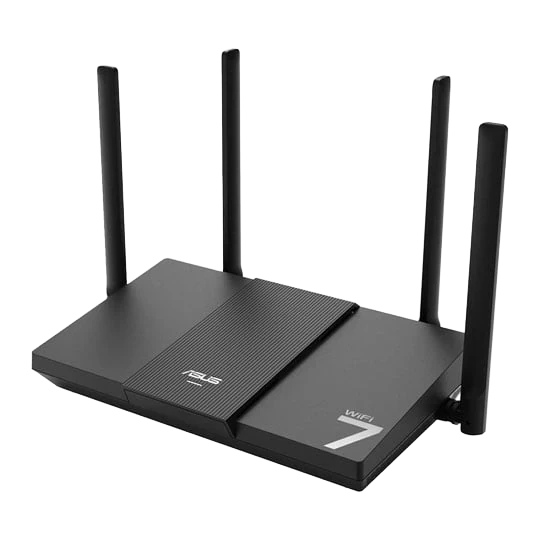
Example home broadband router

Wireless Frequencies

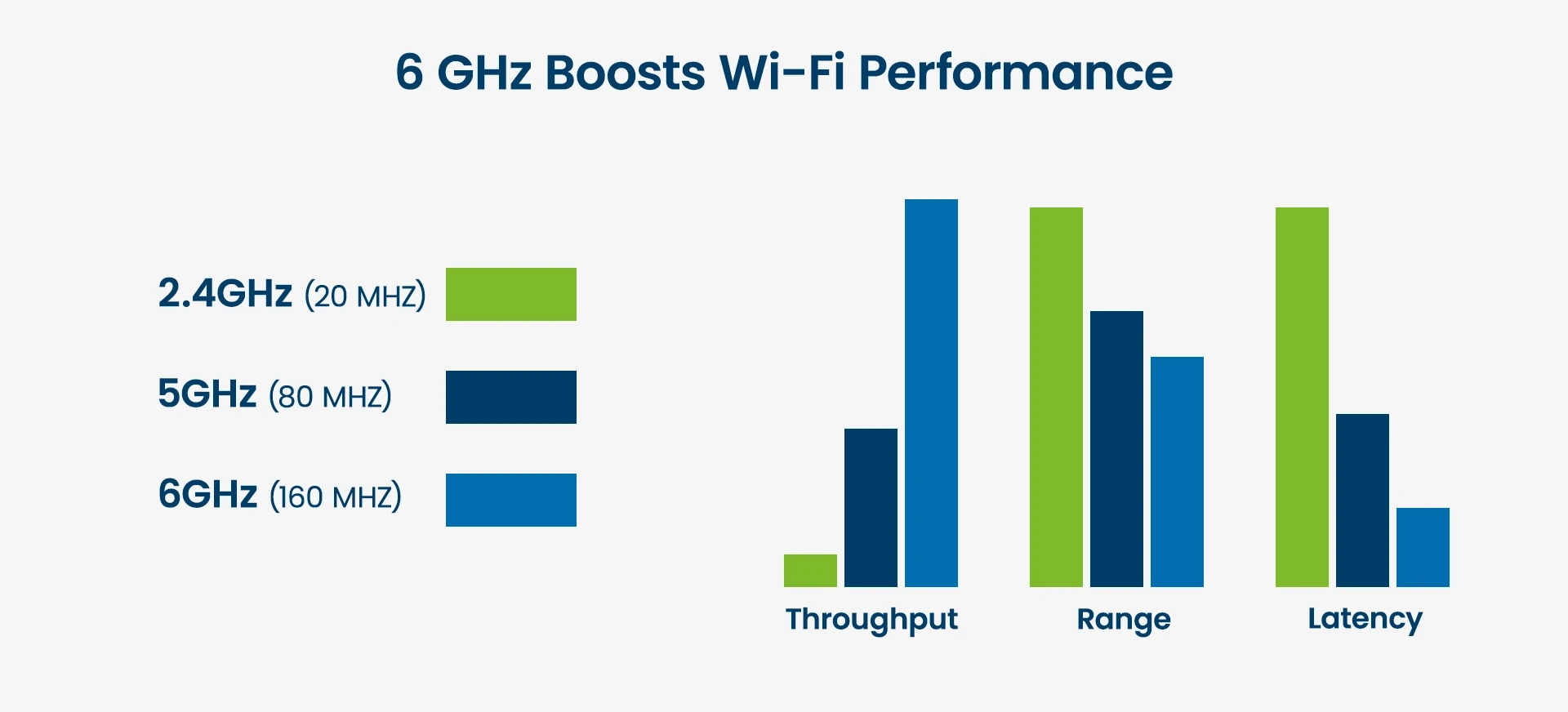
Many routers offer dual or triple bands: 2.4GHz, 5GHz and 6GHz. The 2.4GHz band provides coverage at longer range but transmits data at slower speeds, while the 5GHz and 6GHz bands provide less coverage but faster data transfer.

Wireless performance can also be affected by interference. Many devices use 2.4GHz, including microwaves and garage door openers. The 5GHz and 6GHz bands tend to suffer less overcrowding because fewer devices use them and they provide more channels.

It is worth mentioning that many router manufacturers quote wireless speed figures by adding separate frequency bands together. As these operate on completely separate frequencies, the combined claimed speed can never be achieved by a single connection, so it is best to check specifications for individual frequency throughput figures.

Chart showing Wi-Fi frequency band characteristics

Traffic Management

The router manages traffic between connected wired and wireless devices and the outside world. Many routers include Quality of Service (QoS) and Virtual LAN (VLAN) capabilities for devices connected to Ethernet ports.

QoS deals with traffic prioritisation and ensures high-priority traffic gets preferential treatment, reducing jitter, latency and packet loss. It is best used for real-time applications such as gaming and, audio and video conferencing. In contrast, VLANs use logical segmentation to divide one physical network into multiple logical networks to improve security, manageability, and reduce broadcast traffic. This is best for isolating device types, such as separating work PCs from gaming PCs or consoles.

Router ports and connectivity example

Wireless Security

Wired Ethernet connections in the home are inherently secure as long as router passwords have been changed from defaults, but wireless connections must be secured with encryption on both the router and connected device.

Wireless security standards by encryption and security level
Security Standard Encryption Level of Security Comments
WPA3 (Wi-Fi Protected Access 3) 192-bit AES-GCM Highest Most Recommended
WPA2 (Wi-Fi Protected Access 2) 128-bit AES-CCMP High Highly Recommended
WPA (Wi-Fi Protected Access) 128-bit TKIP Medium Not Recommended
WEP (Wired Equivalent Privacy) 64-bit RC4 Low Do not Use

Devices and routers of different ages may feature security levels that do not match, so features such as WPA2/WPA3 Mixed Mode allow them to connect as securely as possible. Always check device security specifications to ensure you get the best encrypted connections available to your router.

Extending Wireless Range

Although the latest routers can have large wireless coverage ranges, most homes can still suffer from dead spots caused by thick walls, distance, or the need to cover an outbuilding. This can be addressed with a wireless mesh system, an additional access point, a wireless extender or a HomePlug adapter, each with its own advantages and disadvantages.

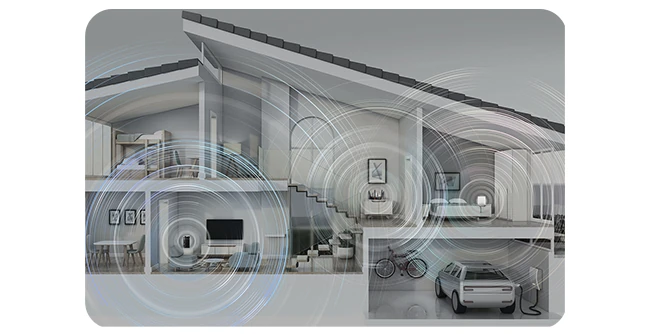
Wireless mesh coverage example
Wireless range extension options by connection method, comments and cost
Type Connection to Router Comments Cost
Mesh Access Point Via a LAN port Additional access point(s) act to create a wireless mesh creating blanket coverage over a wide area High
Access Point Via a LAN port Second access point provides wireless signal to area distant from the router Medium
Extender Via Wireless Extends wireless signal range but at half the speed of original Low
HomePlug Adapter Via a LAN port Uses home's electrical cabling to transmit signal to area distant from the router - see HomePlug tab Low

Ready to Buy?

Now that you've discovered the perfect home network configuration, browse our range of products.

View Routers View Switches View HomePlug Adapters View Cables View Wireless Accessories View Wireless Adapters
Home networking router

Complete Your Setup

Learn how to add intelligence to your home in our smart home buyers guide that covers technologies such as CCTV cameras, heating and lighting controls, bulbs, thermostats, alarm systems, doorbells and kitchen appliances.

View Smart Home Buyers Guide
Smart home devices

Frequently Asked Questions

A home network is a Local Area Network (LAN) that connects devices such as computers, tablets, smartphones and smart devices to each other and to the Internet. It uses a router, and potentially a network switch, to manage wired and wireless traffic.

A router is a specialised device that connects multiple networks, such as your home LAN and the Internet WAN, and directs data traffic between them.

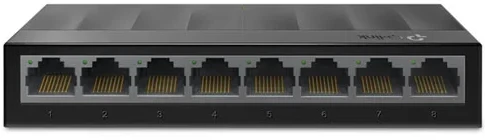
A network switch connects multiple wired devices, such as computers, printers and storage, within a local area network to facilitate communication.

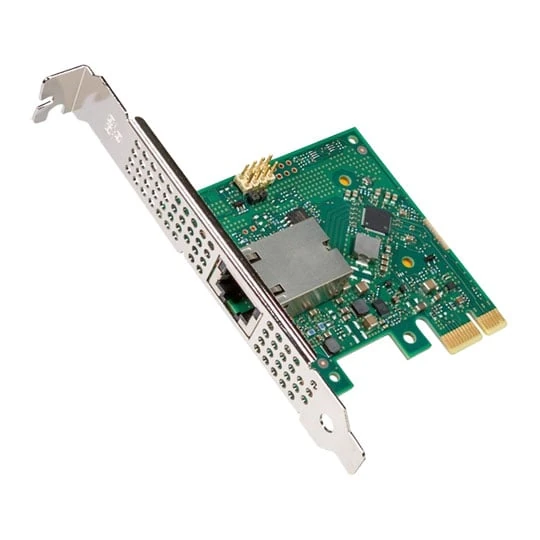
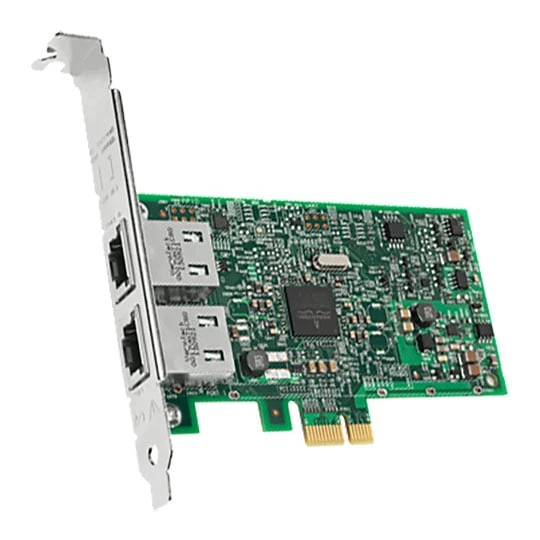
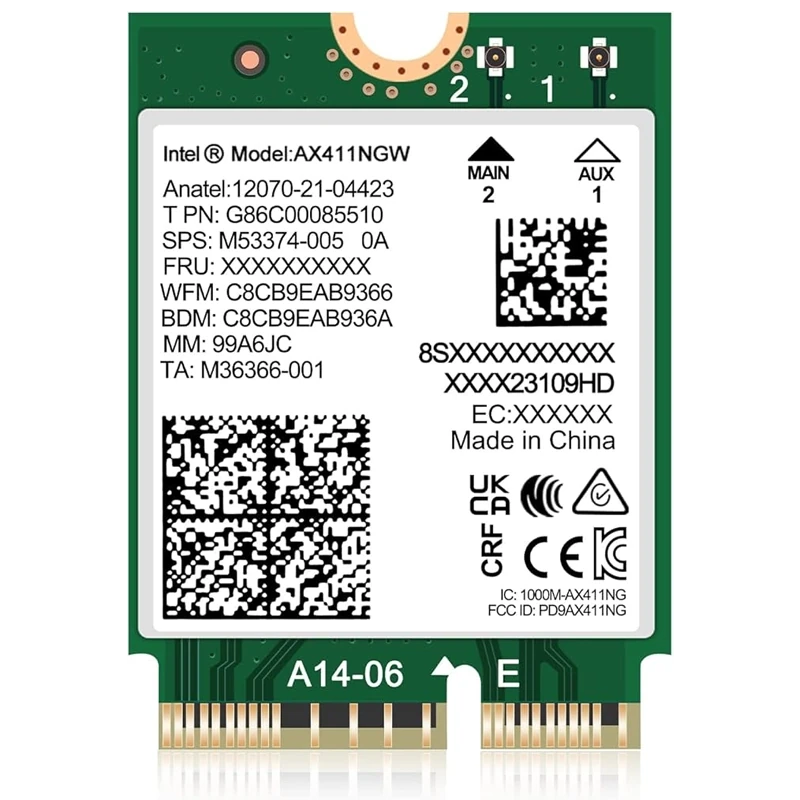
A Network Interface Card (NIC) is installed in a computer or device to enable wired Ethernet or wireless Wi-Fi network communication and data transmission.

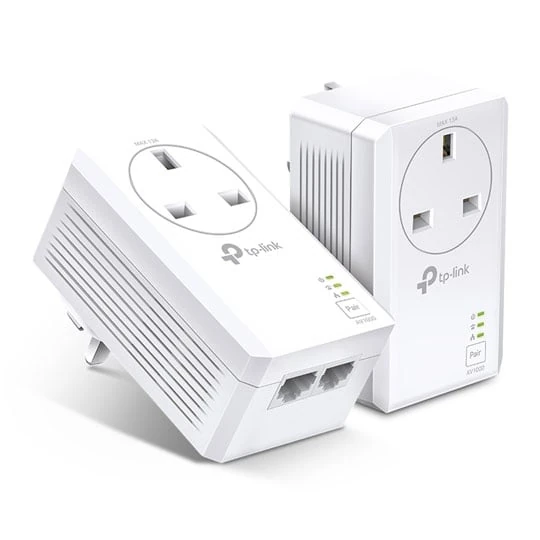
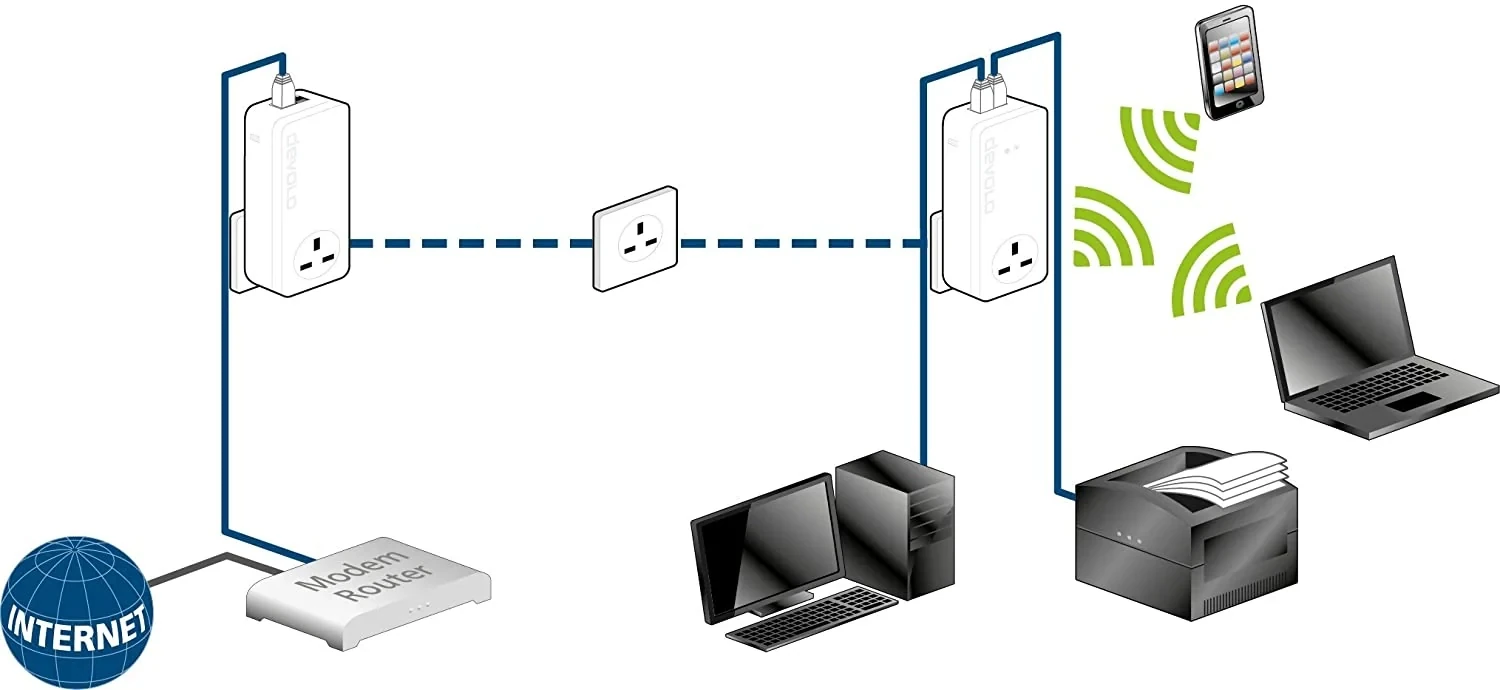
A HomePlug adapter, or powerline adapter, uses your home's existing mains electrical wiring to transmit network signals, creating a wired network connection without installing Ethernet cabling.

A smart home includes interconnected devices that let homeowners remotely control, monitor and automate systems such as heating, lighting, security and appliances. Learn more in our Smart Home Buyers Guide.
A smart home is not a necessity, but it can improve energy efficiency, security and convenience by automating routine tasks such as lighting, heating and security. Learn more in our Smart Home Buyers Guide.