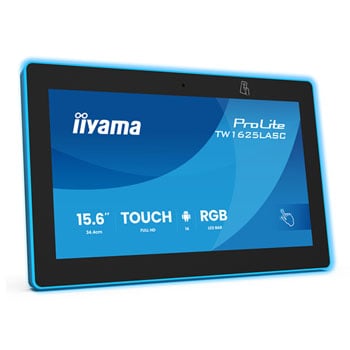

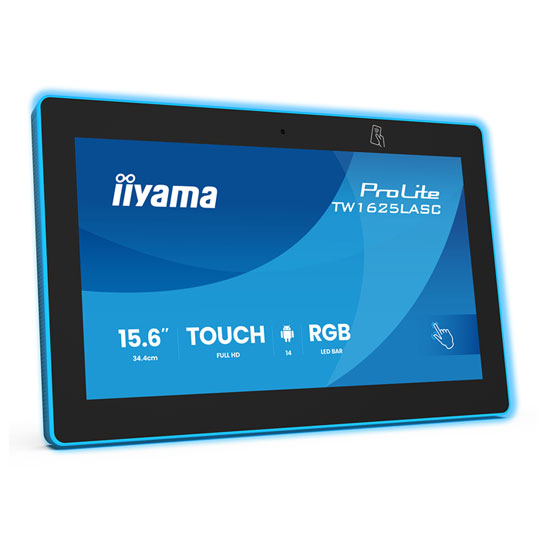
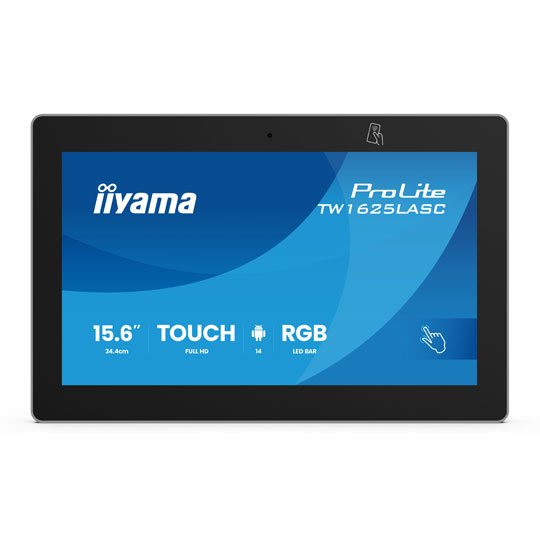
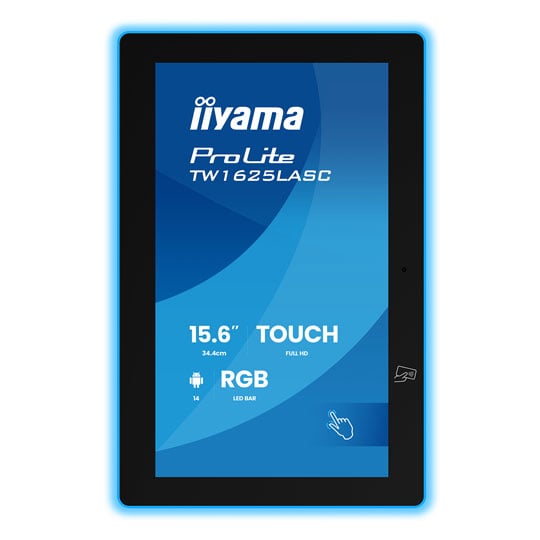
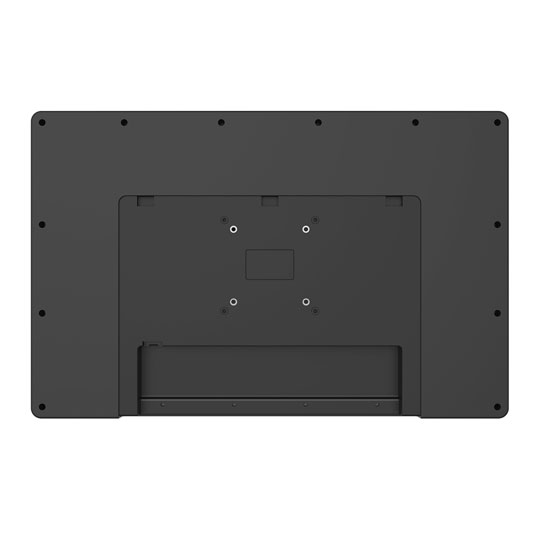


iiyama 15.6" ProLite TW1625LASC-B3PNR Full HD Interactive Touch Panel
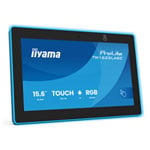
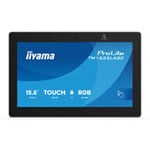
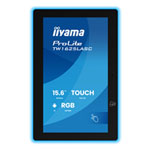
15.6" iiyama ProLite TW1625LASC-B3PNR Interactive Touch Panel, Rockchip RK3576, 1920x1080, 20ms, 1000:1, 450cd/m²
Email me when the availability or price changes
Finance this product
- From £17.09 / month (APR 16.9%) for 24 months or 0% for 4 months
- Spend over £390.00 and Buy Now, Pay Later or spread the cost of your finance over 24-48 months with a 10% deposit.
Suggested Alternatives
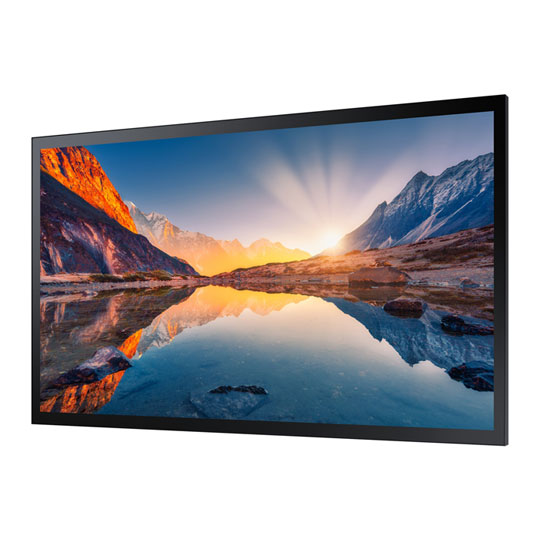
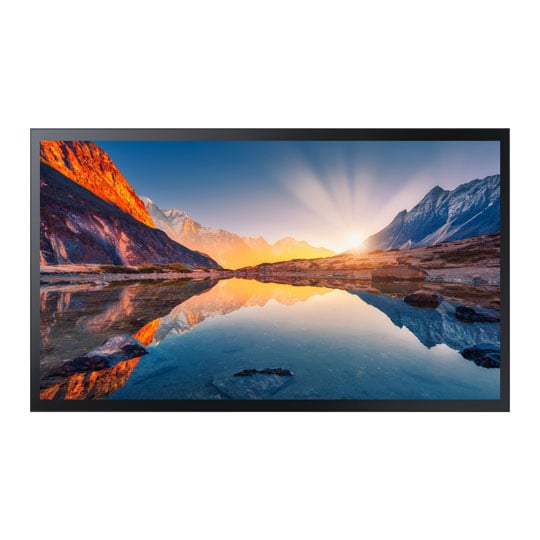
 32" Samsung QM32R-T Full HD Touch Display, Wi-Fi/HDMI/RS232/RJ45/DP/400nit, Embedded Media Player, 17/7, 3 Year WarrantySamsung 32" QM32R-T Full HD PCAP Touch Display
LN110236
No customer review
32" Samsung QM32R-T Full HD Touch Display, Wi-Fi/HDMI/RS232/RJ45/DP/400nit, Embedded Media Player, 17/7, 3 Year WarrantySamsung 32" QM32R-T Full HD PCAP Touch Display
LN110236
No customer reviewKey Specifications
- 32" Samsung QM32R-T Full HD Touch Display
- Wi-Fi/HDMI/RS232/RJ45/DP/400nit
- Embedded Media Player
- 17/7
- 3 Year Warranty
£1,439.99ETA 1-3 days
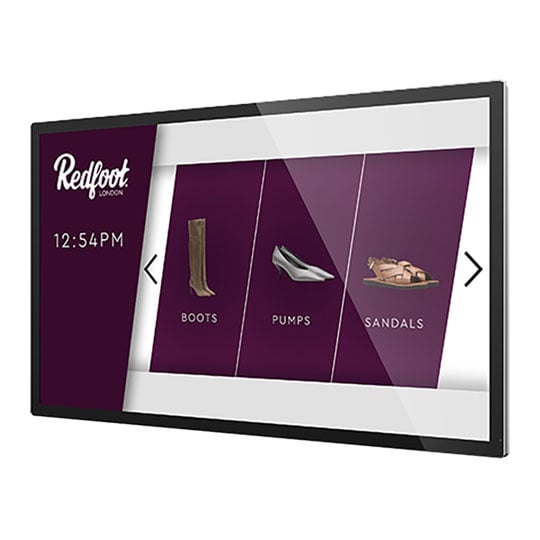
 32" AllSee Android PCAP Touch Screen Display, IPS, 1920x1080, 5000:1, 450cd/m2AllSee 32" Android PCAP Touch Screen
LN158255
No customer review
32" AllSee Android PCAP Touch Screen Display, IPS, 1920x1080, 5000:1, 450cd/m2AllSee 32" Android PCAP Touch Screen
LN158255
No customer reviewKey Specifications
- 32" AllSee Android PCAP Touch Screen Display
- IPS
- 1920x1080
- 5000:1
- 450cd/m2
£911.99Pre order
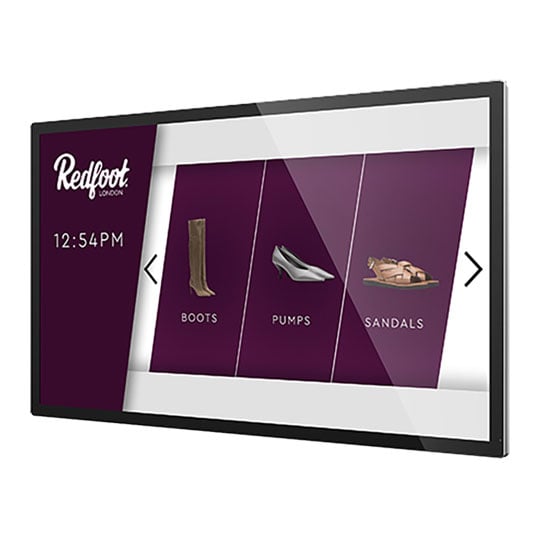 22" AllSee Android PCAP Touch Screen Display, IPS, 1920x1080, 5000:1, 450cd/m2AllSee 22" Android PCAP Touch Screen Display
LN158256
No customer review
22" AllSee Android PCAP Touch Screen Display, IPS, 1920x1080, 5000:1, 450cd/m2AllSee 22" Android PCAP Touch Screen Display
LN158256
No customer reviewKey Specifications
- 22" AllSee Android PCAP Touch Screen Display
- IPS
- 1920x1080
- 5000:1
- 450cd/m2
£659.99Pre order
15.6" ProLite TW1625LASC-B3PNR Touchscreen PC from iiyama

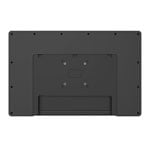
Steamline Your Business The ProLite TW1625LASC-B3PNR is a smart 15.6" touch panel PC built for high-traffic spaces like meeting rooms, info points and hospitality environments. Powered by Android, it combines 10‑point PCAP touch with optical bonding for smooth, precise interaction and reduced glare. With PoE, integrated NFC/RFID, RGB LED bar, camera, microphone and speakers, it delivers an intuitive all‑in‑one control and signage solution.
15.6"Size
1920x1080Full HD Resolution
IPSPanel
10pt PCAPTouchscreen
Clear, Intuitive & Smart


RGB Led bar The RGB Led bar will clearly and intuitively indicate the room's availability status and can display a wide range of colours.
NFC & RFID reader Thanks to the NFC/RFID reader, the touch panel PC allows to communicate wirelessly with enabled devices or tags within close proximity.
Features

Android OS Thanks to Android OS, you can easily customise the display to your needs by installing applications directly to it.

Build-In Webcam, Microphone and Speakers Making the screen a perfect solution for semi or fully automated reception solutions allowing businesses to track and manage visitor traffic at the front desk lobby without compromising on the safety and security of your staff, visitors and company assets.
Connectivity
The RJ45 (LAN) connector supporting Power over Ethernet technology (POE) allows to provide both data connection and power by a single cable, which simplifies installation in areas where many cables would interfere with the environment.

Frequently Asked Questions (FAQ)
You can install apps on your iiyama monitor through the official Google Play Store. However, the functionality of these apps may vary, depending on the specific app you wish to install.
If your touch functionality is not working, please check the following:
1. Ensure your PC is connected to the monitor with the supplied USB cable.
2. Verify in the user manual that your operating system is supported by the screen.
When cleaning, please follow these guidelines to avoid damaging your Touch monitor:
1. Avoid using paper towels, abrasive cloths, or any harsh cleaning agents, as they can scratch the screen or damage the touch sensors.
2. Do not spray the cleaning solution directly onto the screen to prevent liquid from seeping into the monitor.
3. Avoid excessive cleaning, as it can wear out the screen over time.
4. For more details, please check iiyama's cleaning instructions.
If your monitor is displaying a "No Signal" message, please check the following:
1. Ensure the cables are properly connected at both ends.
2. Select the correct signal input (HDMI/DP) or choose AUTO.
For guidance on selecting an input while the screen is in standby mode, please consult the user manual. On desktop monitors, common methods include pressing the INPUT, AUTO, or "2" buttons, or moving the joystick backward.
Yes, your iiyama monitor will work with your Apple Mac system. However, it depends on the signal input how to connect. Since Apple Mac systems from 2020 onwards only have Thunderbolt 3 (USB-C) ports for video output, you have two options:
1. Connect directly to the USB-C signal input on your iiyama monitor.
2. In case your monitor only has HDMI or Displayport, you will need a Mac-compatible dongle that supports one of the video inputs available. Apple offers a USB-C Digital AV Multiport Adapter (MW5M3AM) that can be used for this purpose.
To resolve the issue of a blinking picture, please follow these steps:
1. Inspect the Signal Cable.
Ensure the signal cable is securely connected at both ends and free from any physical damage. Avoid any sharp bends or squishing of the cable.
2. Use a Shorter Cable.
If possible, use a cable shorter than 3 meters and connect the monitor directly to a wall power socket, avoiding the use of adapters.
3. Disable FreeSync/Adaptive Sync.
For desktop or gaming monitors, try disabling FreeSync or Adaptive Sync in the monitor's settings menu.
PayPal Credit
| Monthly Payment: | £31.71 |
| Instalment Rate: | 16.9% p.a. (fixed) |
| Cost of purchase: | £349.99 |
| Total inc. interest: | £380.48 |
| Monthly Payment: | £17.09 |
| Instalment Rate: | 16.9% p.a. (fixed) |
| Cost of purchase: | £349.99 |
| Total inc. interest: | £410.14 |
| Example | |
| Minimum Spend: | £99 |
| Instalment Rate: | N/A |
| Cost of purchase: | £99 |
| Total inc. interest: | £99 |
Representative Example:
Purchase Rate: 23.9% p.a. (variable)
Representative: 23.9% APR (variable)
Assumed Credit Limit: £1,200
Subject to status. Terms and Conditions apply.