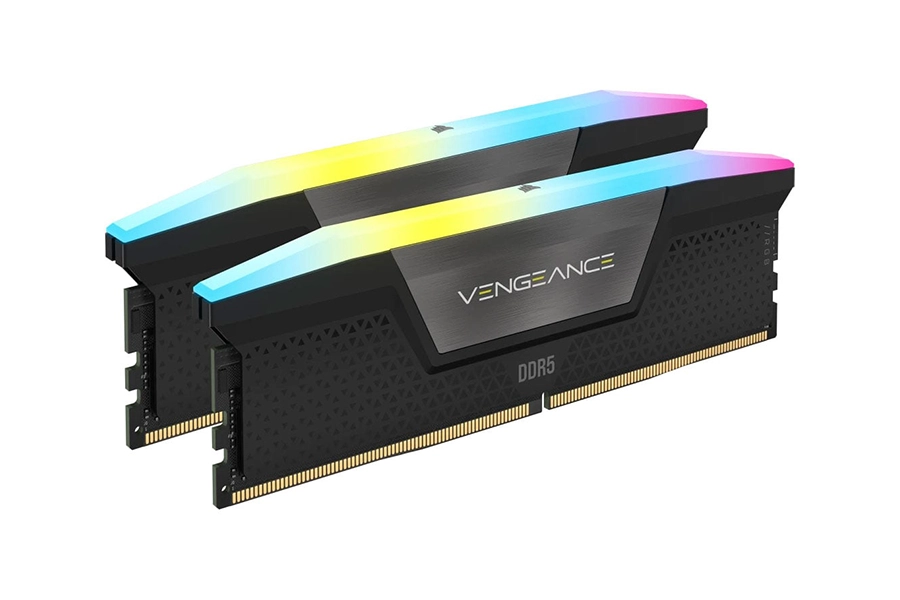
Most desktops and workstations require 288-pin DIMMs.
System memory, or to be more precise RAM (Random Access Memory), plugs into the motherboard, and is used by the CPU to temporarily store data before it is permanently stored on an SSD or HDD. Without sufficient RAM your system may struggle to load games and applications, or run them so slowly they are unusable.
You'll also need lots of memory if you want to run multiple applications in parallel, for example streaming a game, or video editing and image editing. As such, it's important to consider what you are planning to use your PC for, as different games and applications will benefit from varying amounts of memory.
Before we dive into how to pick the right RAM it's important to not get confused between system RAM and VRAM. The latter stands for Video Random Access Memory, and is soldered onto graphics cards, providing the GPU with a cache for assets such as 3D models and textures. In short, both play a crucial role in performance, but system RAM is upgradeable and graphics card VRAM is not.
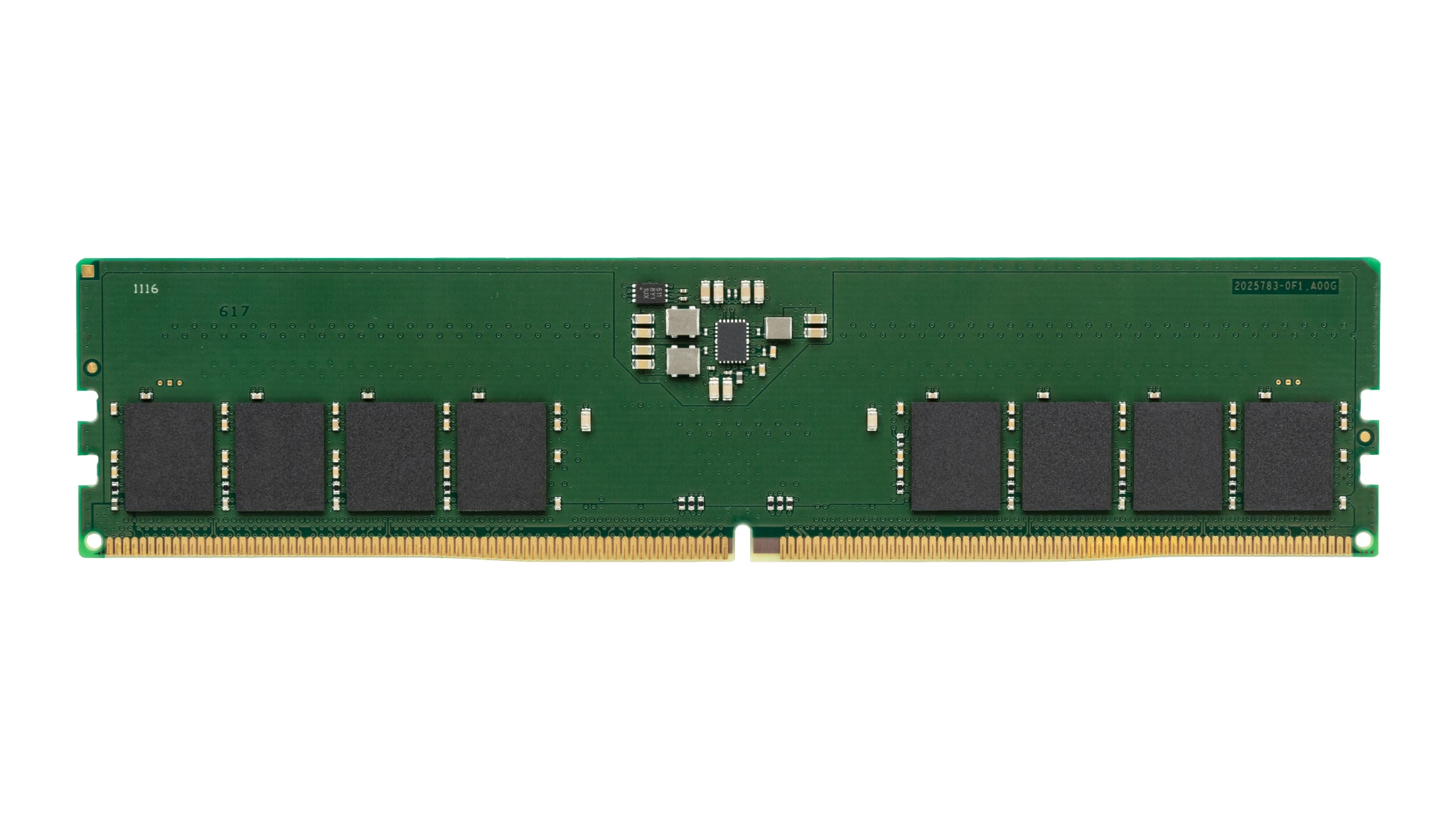
You can add more RAM to a system to improve performance
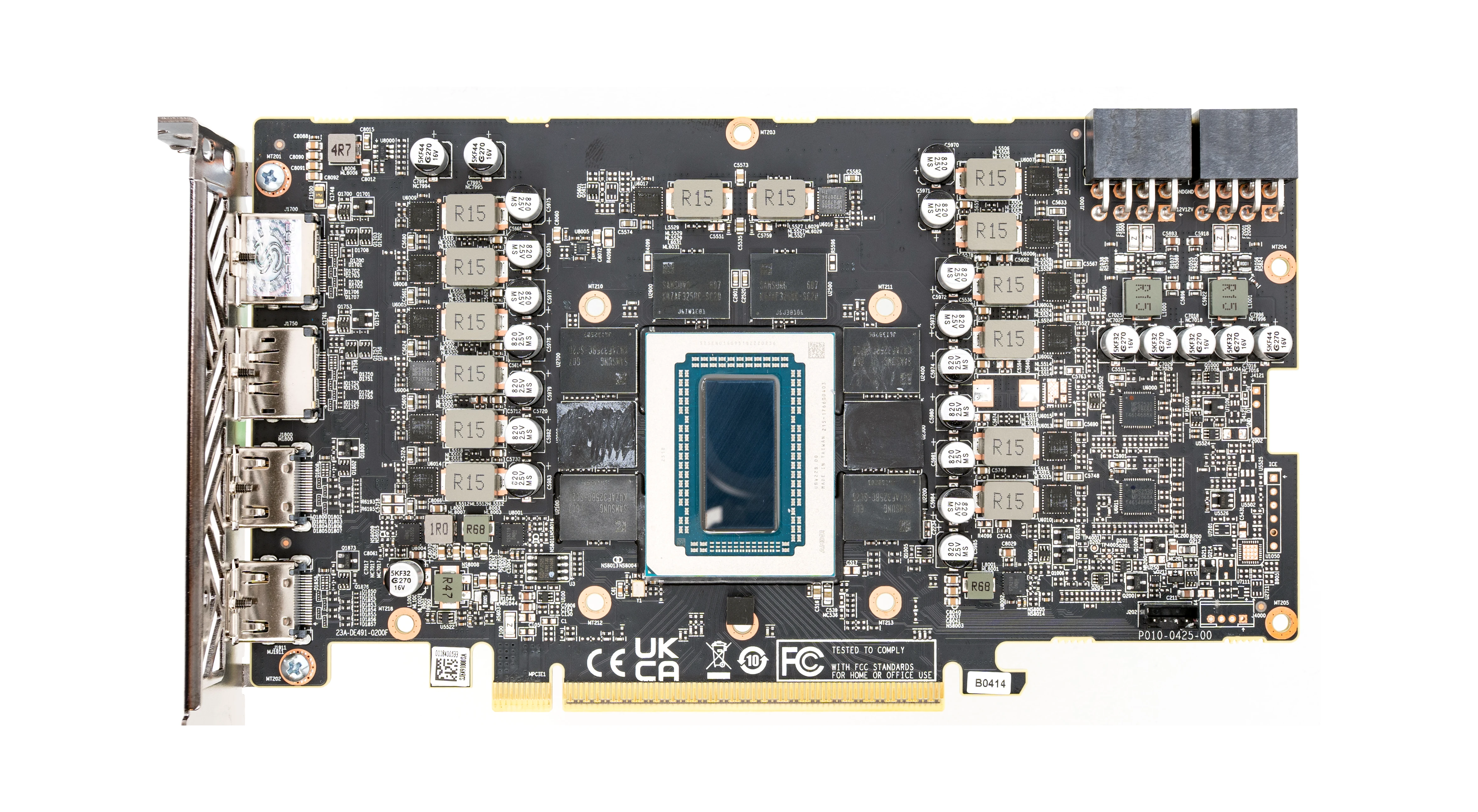
In contrast, graphics cards have a fixed quantity of VRAM
While all types of system RAM work in the same fundament way, there are some key differences to be aware of. Click the tabs below depending on what sort of system you have.
These systems all use the same types of RAM, the only difference is the physical size of the RAM, with laptops requiring smaller memory sticks (more on this later). Read on to discover what you need to know about the key specs to choose the optimum RAM.
While there are various types of memory available, the vast majority of PCs and laptops sold in the last few years support a couple of types of memory – DDR4 and DDR5. This stands for Double Data Rate, with the '4' and '5' meaning this is the fourth or fifth generation of DDR memory. DDR5 is the latest generation, providing more bandwidth than DDR4, which is especially important in GPU-intensive software such as games, graphics, video and AI. There is also subset of DDR5, known as DDR5 CUDIMMs. These Clocked Unbuffered Dual In-line Memory Modules run at higher frequencies than standard DDR5 DIMMs, but are only supported by select Intel processors and motherboards.
This table summaries which type of memory is best for the most popular platforms, but it's best to check the specs of your CPU and motherboard as whether they support DDR4 or DDR5 as this can vary from system to system.
| CPU | DDR4 | DDR5 |
|---|---|---|
| AMD Ryzen 9000 | ✖ | ✔ |
| AMD Ryzen 7000 | ✖ | ✔ |
| AMD Ryzen 5000 | ✔ | ✖ |
| AMD Threadripper PRO 9000 & Threadripper 9000 | ✖ | ✔ |
| Intel Core Ultra 200 | ✖ | ✔ |
| Intel 14th gen Core | ✔ | ✔ |
| Intel 13th gen Core | ✔ | ✔ |
| Intel 12th gen Core | ✔ | ✔ |
| Intel Xeon W-3500 & W-2500 | ✖ | ✔ |
If you're upgrading, as opposed to building a new system, it's essential that you pick memory that works alongside the existing memory. Even a slight mismatch in frequency, timings or voltage can cause system instability. The best way to ensure stability is to buy the same modules as those currently installed, so make sure to check your old invoice or look inside the system itself. Once you've ensured system compatibility, there are a few other considerations when choosing your perfect system memory, as detailed in the tabs below.
RAM chips are packed onto small PCBs(Printed Circuit Boards) that plug into sockets on the motherboard. They are available in two main types, DIMMs and their smaller cousin SODIMM. It's crucial to pick the right type of memory module for your system.
Most desktops and workstations require 288-pin DIMMs.
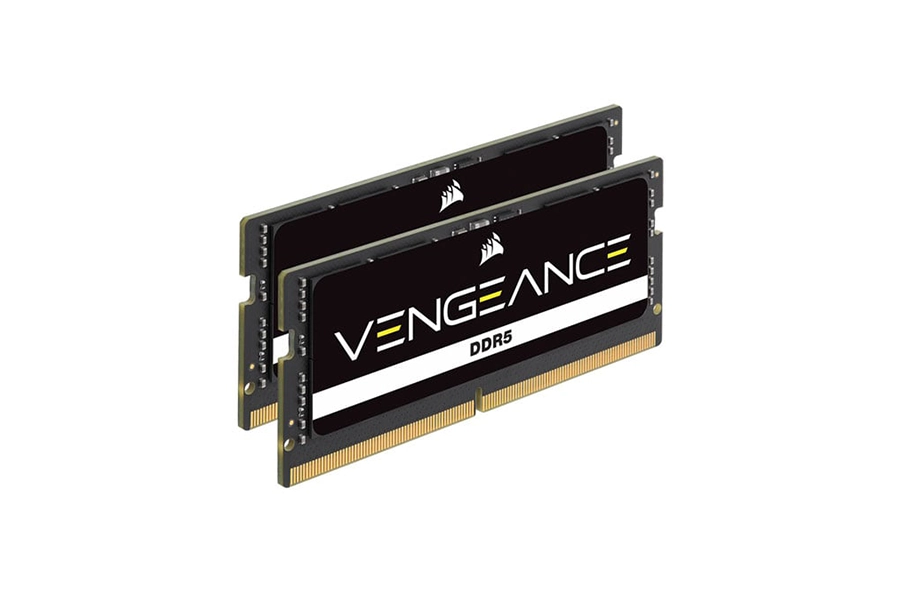
Due to their smaller size, laptops require compact 240-pin SODIMMs.
The next decision you need to make is selecting a pack of memory with the optimum number of channels. This corresponds to the number of DIMMs, as you can not only increase the amount of RAM by installing more DIMMs, but also improve performance. This is because most CPUs support dual-channel memory, so will perform best when you install the DIMMs in pairs. However, some workstation CPUs support more channels, so will perform best when you install the memory in specific multiples as detailed in the table below.
Although you can buy individual DIMMs, it is better to buy a dual-channel or quad-channel kit, as the DIMMs in the pack will have been tested together by Corsair. This table summaries how many channels the most popular CPUs support and what quantity of DIMMs to install at once. Providing you have sufficient free DIMM slots on the motherboard, you can install more DIMMs. For example, on most gaming motherboards you can install four DIMMs (two pairs of two) to increase the total amount of RAM.
| CPU | Channels | DIMM multiples |
|---|---|---|
| AMD Ryzen 9000 | Dual | x2 |
| AMD Ryzen 7000 | Dual | x2 |
| AMD Ryzen 5000 | Dual | x2 |
| AMD Threadripper PRO 9000 | Octo | x8 |
| AMD Threadripper Threadripper 9000 | Quad | x4 |
| Intel Core Ultra 200 | Dual | x2 |
| Intel 14th gen Core | Dual | x2 |
| Intel 13th gen Core | Dual | x2 |
| Intel 12th gen Core | Dual | x2 |
| Intel Xeon W-3500 | Octo | x8 |
| Intel Xeon W-2500 | Quad | x4 |
While there are several factors that determine RAM performance, the most important specification to look out is the speed, which is displayed as the clock frequency in MHz or as its bandwidth in megabytes per second. System RAM is normally specified as PCx where x is the generation, i.e. 5 for DDR5 and 4 for DDR4, then the bandwidth itself in megabytes per second.Whether you're looking at frequency or bandwidth, the higher the number the faster the performance. In the case of confusion, use the table to translate between the most common specifications of the two metrics of RAM speed.
| Frequency | Bandwidth |
|---|---|
| 7,000MHz | PC5-56000 |
| 6,400MHz | PC5-51200 |
| 6,000MHz | PC5-48000 |
| 5,600MHz | PC5-44800 |
| 4,800MHz | PC5-38400 |
| 3,200MHz | PC4-25600 |
| 3,000MHz | PC4-24000 |
| 2,666MHz | PC4-21300 |
| 2,400MHz | PC4-19200 |
| 2,133MHz | PC4-17000 |
The other key metric of RAM performance is the Column Address Strobe (CAS) latency, which measures the delay between a read command being received and data being read. CAS is measured in clock cycles, so the lower the number the better the performance. i.e. CAS 38 is faster than CAS 40.
A word of caution, you won't get the full benefit of high performance RAM unless you go into the motherboard BIOS and do some tweaking. This is because not all CPUs support super-fast memory, so motherboards set the memory to run at a safe neutral speed out of the box. You can optimse memory performance yourself in the BIOS, or choose DIMMs that support either EXPO (for AMD CPUs) or XMP (for Intel CPUs). EXPO and XMP store one or more memory profiles on the DIMMs, which can be read by the BIOS, saving you having to manually enter values.
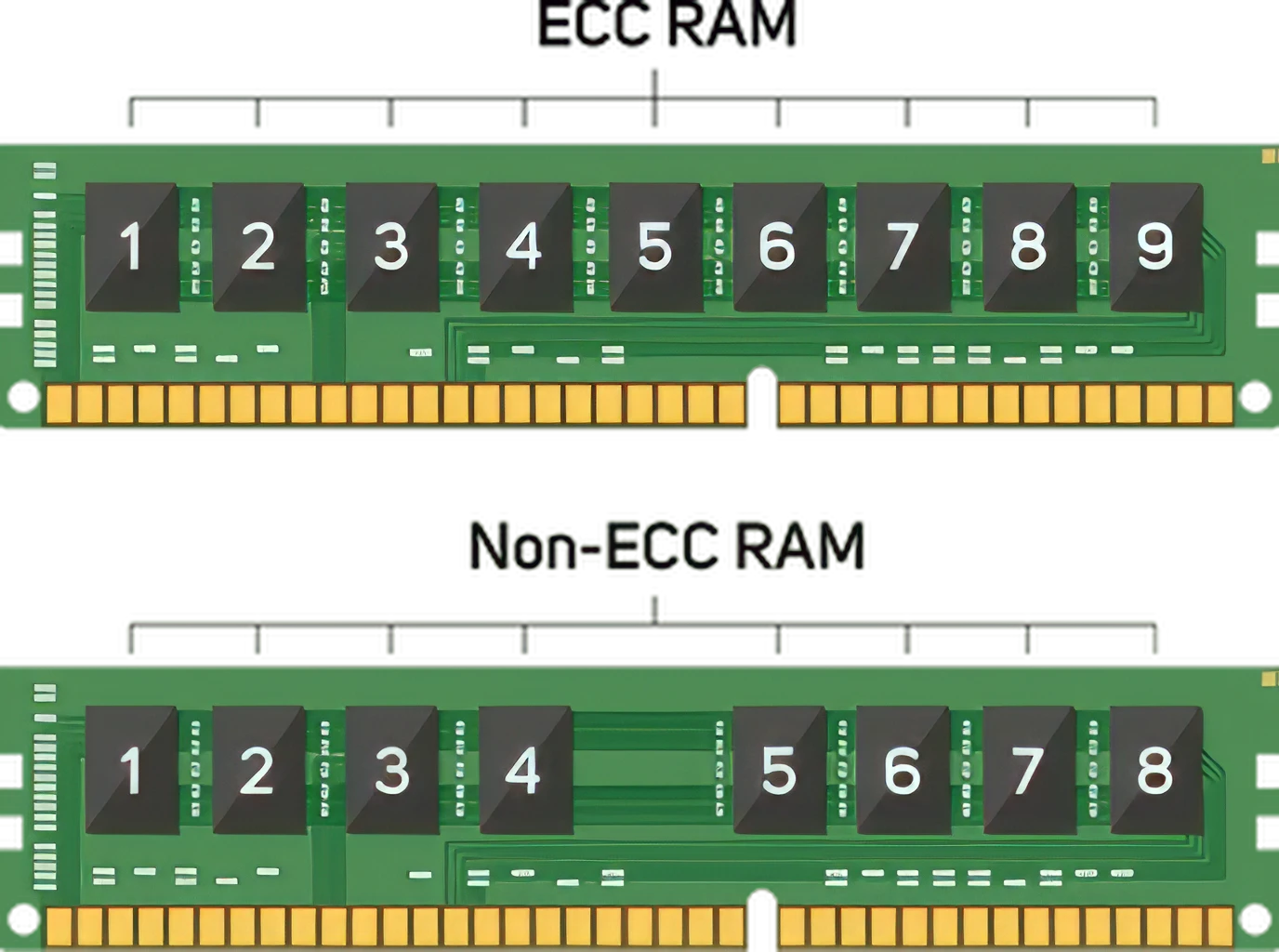
This isn't a consideration for most systems, as the vast majority of consumer CPUs only support standard non-ECC RAM. However, workstation CPUs such as AMD Threadripper and Intel Xeon W do support ECC RAM as an option. ECC stands for Error Correcting Code, which improves system stability caused by electromagnetic interference such as nearby electronic devices and sunspots. ECC is a sensible precaution for systems that will be used 24\7 for mission critical or commercially sensitive workloads.
ECC RAM uses a mathematical process to ensure data stored in memory is correct, detecting and correcting errors in real-time. ECC uses a form of parity, using an extra nineth bit on top of the standard eight bits that store data. As a result, ECC RAM DIMMs are more expensive than non-ECC DIMMs, having an extra DRAM chip to perform this parity role.
DIMM modules themselves are typically only available in two colours, black or white, but to add further customisation some have integrated multi-colour LEDs compatible with standard RGB lighting systems such as Corsair iCUE.
Installing more memory in your PC or laptop is an easy way to boost its performance. However, not all applications and games will benefit equally from having lots of memory. The following tabs shows several examples of different use cases, giving examples of how much memory will give you the best bang per buck. You can of course install more memory, but the aim of this guide is to show you the minimum configuration so you have a good user experience.
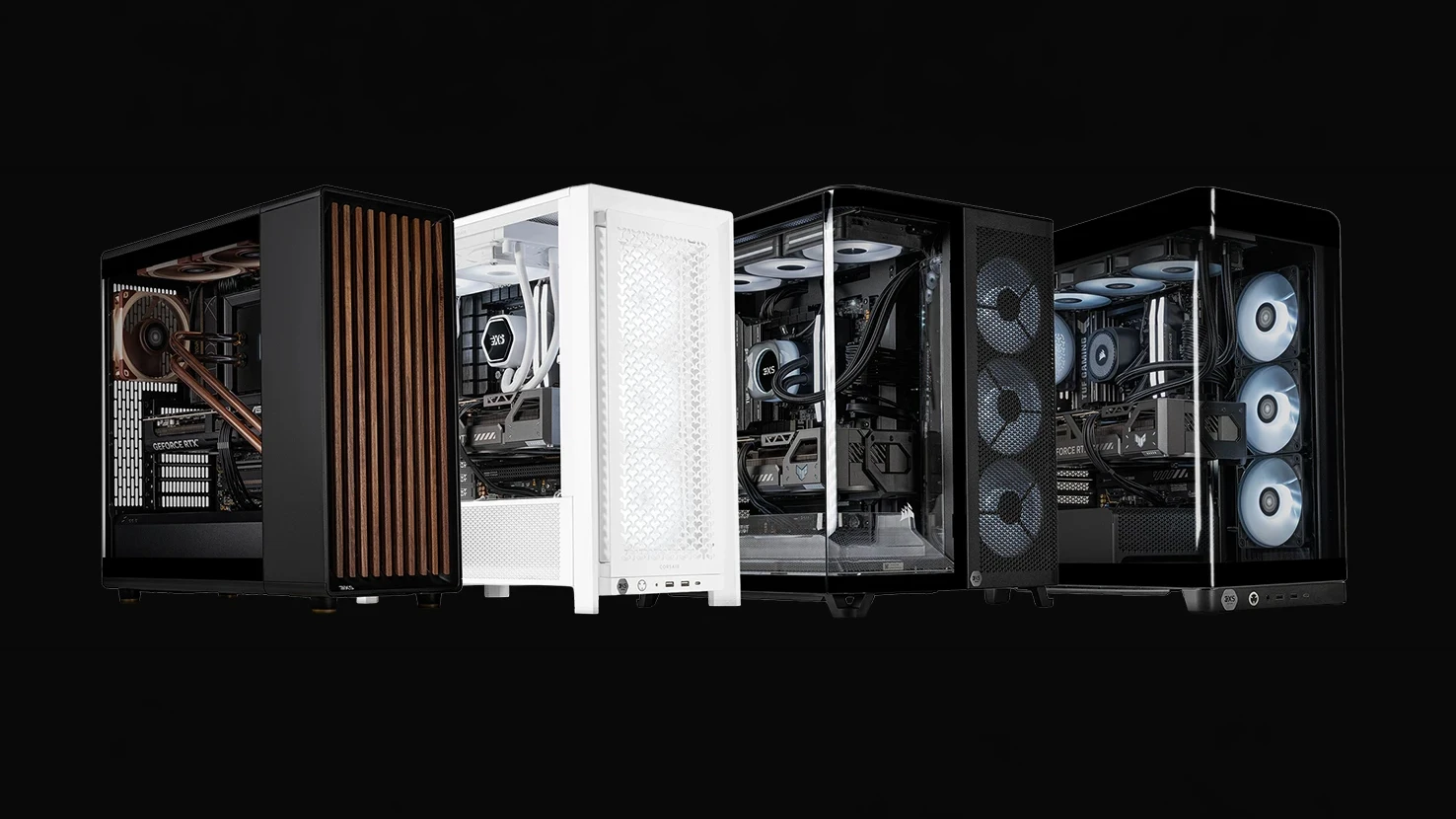
Even if you have a powerful graphics card, insufficient RAM can cause the framerate to stutter in games, while data is pulled from the (comparatively slow) SSD rather than (comparatively fast) RAM. Insufficient RAM will also extend level loading times, as less data can be cached at once. As such, we strongly recommend aiming for 32GB of RAM.
| 16GB | 32GB | 64GB+ | |
|---|---|---|---|
| Performance | |||
| Price | |||
| Recommended scenario | Entry-level less graphically demanding games | Most games | Gaming and streaming |
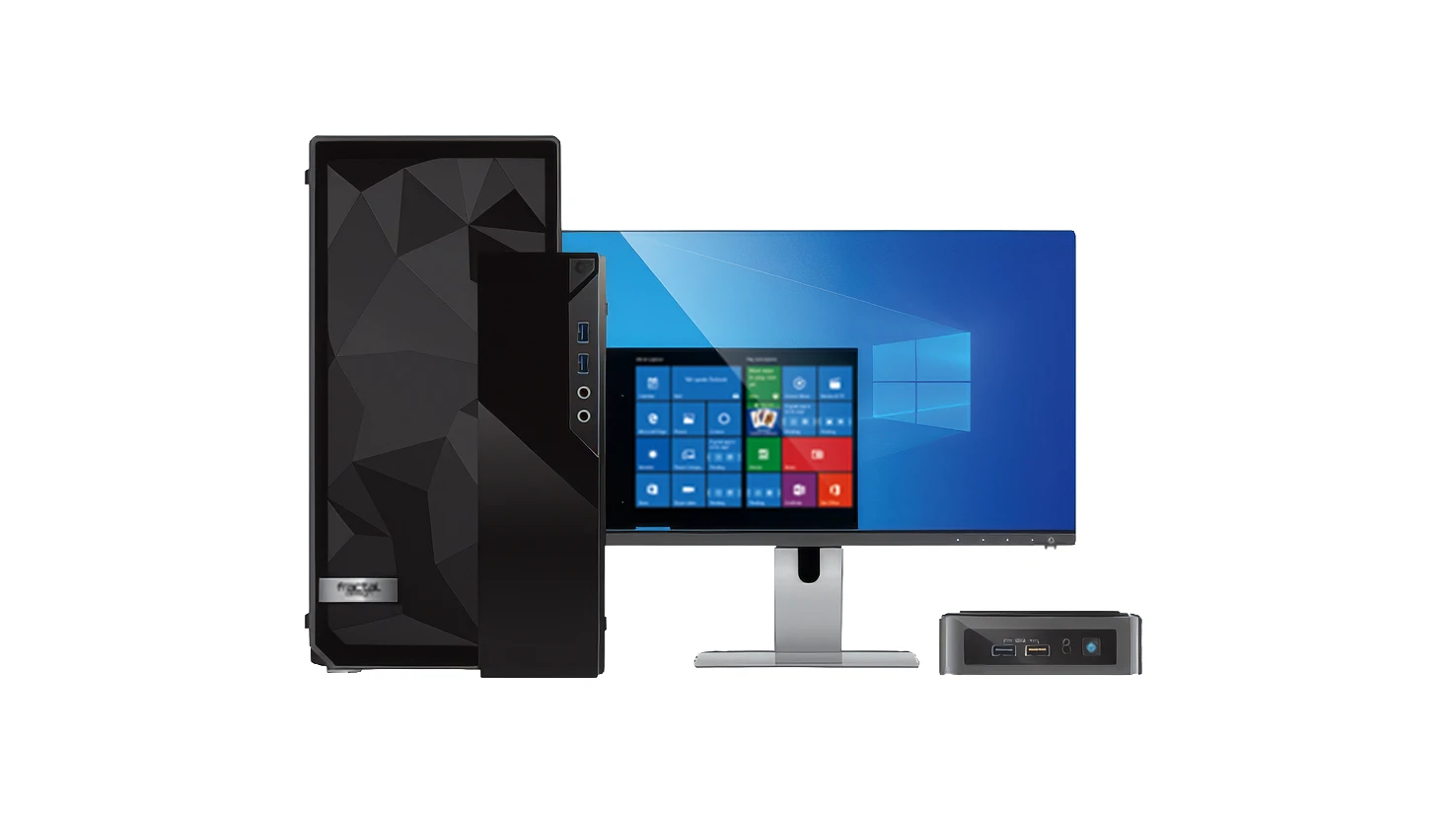
While individual home office applications tend to be less memory intensive than gaming, content creation or AI, you often run multiple applications at once. Once you combine the demands of an email client, word processor, spreadsheet and database, we recommend a minimum of 16GB of RAM, stepping up to 32GB if you do photo editing.
| 16GB | 32GB | |
|---|---|---|
| Performance | ||
| Price | ||
| Recommended scenario | Everyday home office applications | Photo editing |
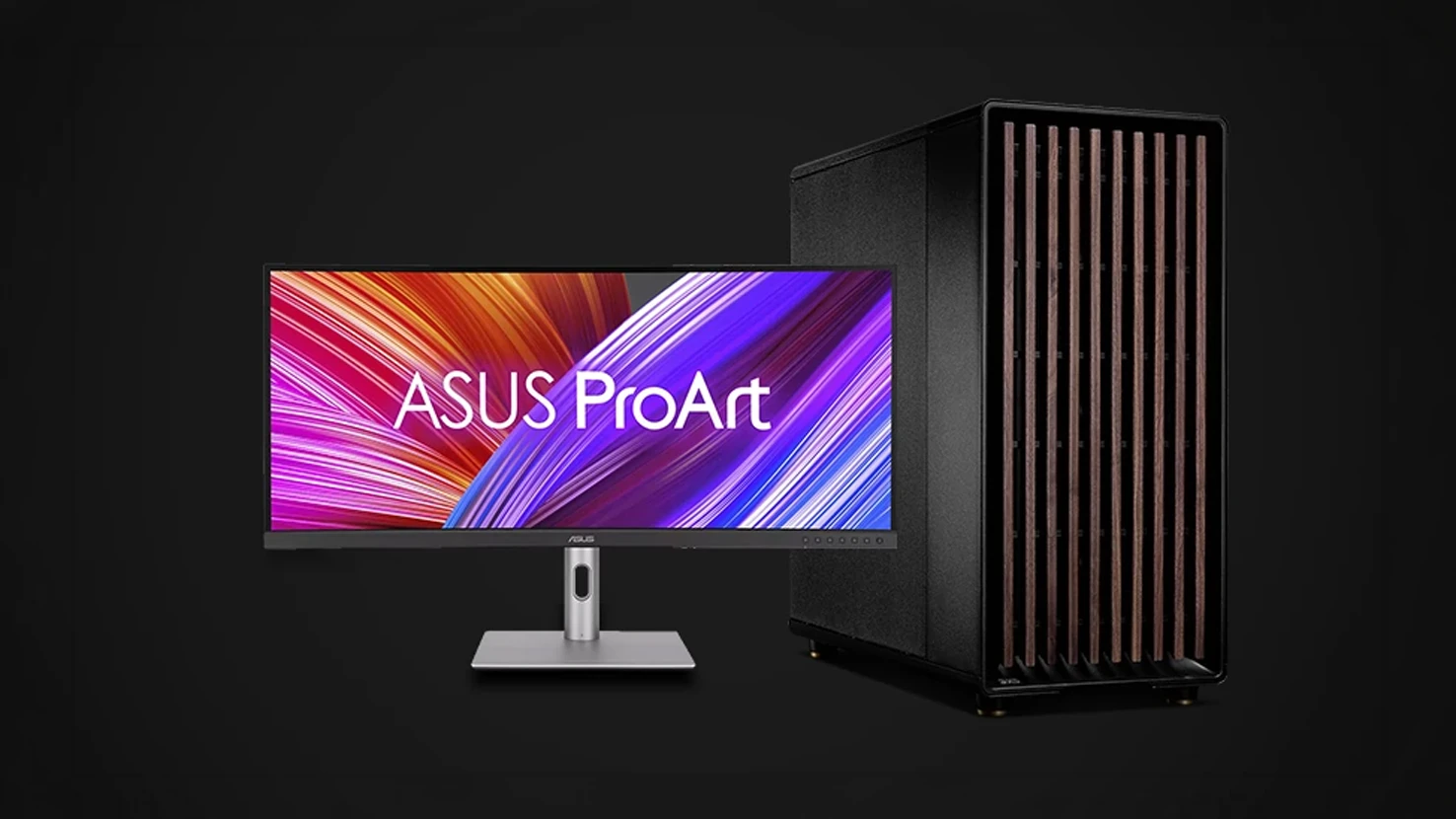
Even if you have a powerful graphics card, insufficient RAM can cause the framerate of the viewport to stutter in graphics applications, while data is pulled from the (comparatively slow) SSD rather than (comparatively fast) RAM. Insufficient RAM will also extend model and asset loading times, as less data can be cached at once. As such, we strongly recommend aiming for at least 32GB of RAM.
| 16GB | 32GB | 64GB+ | |
|---|---|---|---|
| Performance | |||
| Price | |||
| Recommended scenario | Entry-level CAD | Most visualisation applications | Simulations, visualisation with large models and textures |
Even if you have a powerful graphics card, insufficient RAM can delay importing or moving clips on the timeline, and slow down processing of effects while data is pulled from the (comparatively slow) SSD rather than (comparatively fast) RAM. As such, we strongly recommend aiming for at least 32GB of RAM.
| 32GB | 64GB | 128GB+ | |
|---|---|---|---|
| Performance | |||
| Price | |||
| Recommended scenario | Entry-level video editing | Video editing and VFX | Virtual production |
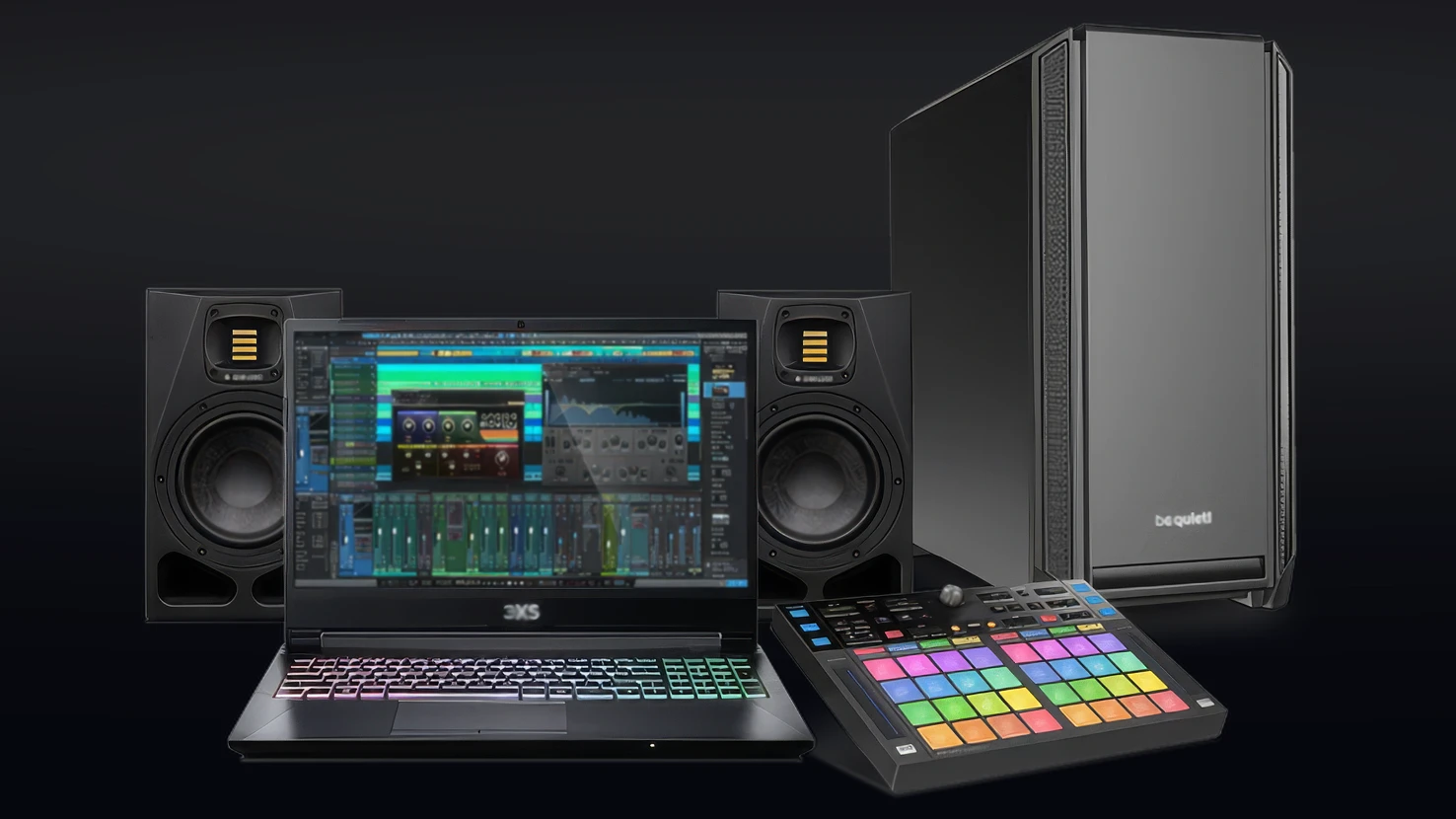
Even if you have a powerful CPU, insufficient RAM can delay importing or moving clips in your DAW, and slow down processing of effects while data is pulled from the (comparatively slow) SSD rather than (comparatively fast) RAM. As such, we strongly recommend aiming for at least 32GB of RAM.
| 32GB | 64GB | 128GB+ | |
|---|---|---|---|
| Performance | |||
| Price | |||
| Recommended scenario | Entry-level DAW | Scoring with large sound libraries | Complex scores for TV & film |

Even if you have a powerful graphics card, insufficient RAM will slow down your AI model as system memory is used as a cache between the comparatively slow SSD and much faster VRAM. Similarly, the more RAM you have, the AI model can run more parameters for greater accuracy. As such, we strongly recommend aiming for at least 64GB of RAM.
| 64GB | 128GB | 256GB+ | |
|---|---|---|---|
| Performance | |||
| Price | |||
| Recommended scenario | Single GPU | Dual GPUs | Four or more GPUs |
Most servers use a different type of RAM from PCs and laptops. Read on to discover what you need to know about the key specs to choose the optimum RAM.
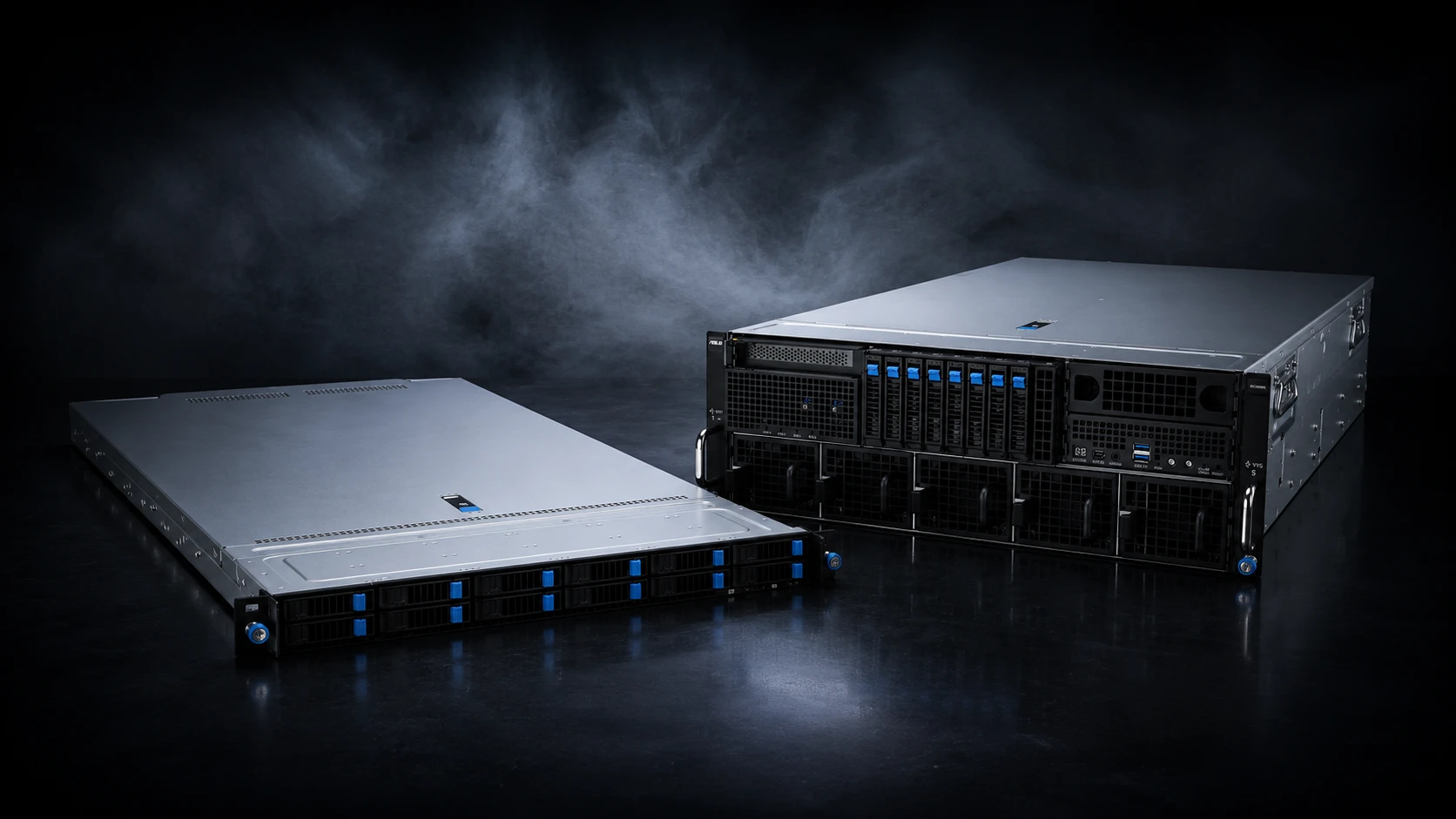
While there are various types of memory available, most servers sold in the last few years support a couple of types of memory – DDR4 and DDR5. This stands for Double Data Rate, with the '4' and '5' meaning this is the fourth or fifth generation of DDR memory. DDR5 is the latest generation, providing more bandwidth than DDR4, which is especially important in GPU-intensive software such as graphics, video and AI.
This table summaries which type of memory is best for the most popular platforms, but it's best to check the specs of your server as whether it supports DDR4 or DDR5 can vary from system to system.
| CPU | DDR4 | DDR5 |
|---|---|---|
| AMD EPYC 9005 | ✖ | ✔ |
| AMD EPYC 9004 | ✖ | ✔ |
| AMD EPYC 8004 | ✖ | ✔ |
| AMD EPYC 7003 | ✔ | ✖ |
| AMD EPYC 7002 | ✔ | ✖ |
| AMD EPYC 4005 | ✖ | ✔ |
| AMD EPYC 4004 | ✖ | ✔ |
| Intel Xeon 6 P | ✖ | ✔ |
| Intel Xeon 6 E | ✖ | ✔ |
| Intel Xeon Scalable 5th gen | ✖ | ✔ |
| Intel Xeon Scalable 4th gen | ✖ | ✔ |
| Intel Xeon Scalable 3rd gen | ✔ | ✖ |
| Intel Xeon E-2400 | ✖ | ✔ |
If you're upgrading, as opposed to building a new server, it's essential that you pick memory that works alongside the existing memory. Even a slight mismatch in frequency, timings or voltage can cause system instability. The best way to ensure stability is to buy the same modules as those currently installed, so make sure to check your old invoice or look inside the system itself. Once you've ensured system compatibility, there are a few other considerations when choosing your perfect system memory, as detailed in the tabs below.
This is biggest difference between server RAM and client RAM, as all server CPUs support ECC RAM. ECC stands for Error Correcting Code, which improves system stability caused by electromagnetic interference such as nearby electronic devices and sunspots. ECC is a sensible precaution for servers as they are typically in use 24\7 for mission critical and commercially sensitive workloads.
ECC RAM uses a mathematical process to ensure data stored in memory is correct, detecting and correcting errors in real-time. ECC uses a form of parity, using an extra ninth bit on top of the standard eight bits that store data. As a result, ECC RAM DIMMs are more expensive than non-ECC DIMMs, having an extra DRAM chip to perform this parity role.
Entry-level server CPUs such as the AMD EPYC 4000 and Intel Xeon E 2000 support UDIMMs (Unbuffered DIMMs). Their address and control signals directly reach the DRAM chips on the UDIMM, without going through a buffer and without any timing adjustment.
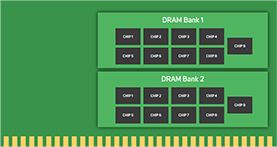
In contrast, most server CPUs support RDIMMs (Registered DIMMs). These deploy a register between the CPU and the DRAM chip for data transmission, which reduces the distance of parallel transmission and improves efficiency. RDIMMs are easier to increase in capacity and frequency than UDIMMs and they support buffered and high-performance registered mode, making it more stable than UDIMM.
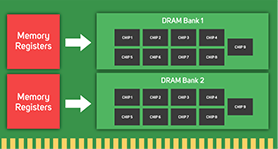
LRDIMM (Load Reduced DIMMs) are an alternative to RDIMMs. Instead of using registers,they are simply buffered. The buffering reduces the power load on the underlying motherboard but has little effect on memory performance. This means LRDIMMs are available in higher capacities than RDIMMs.
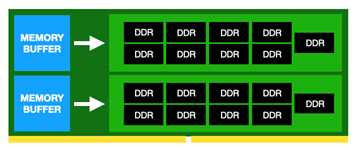
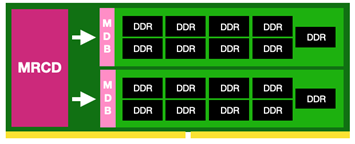
MRDIMM (Multi-Capacity Rank DIMMs) improve performance and efficiency by leveraging multiple ranks within a single module. An MRCD (multiplexed registering clock driver) addresses two ranks of DRAMs on alternate clock cycles, as well as MDBs (multiplexed data buffers) to direct the data stream to and from the correct DRAM devices. This enables MRDIMMs to run at higher clock frequencies than RDIMMs or LRDIMMs.
The next decision you need to make is installing memory for the optimum number of channels. This corresponds to the number of DIMMs, as you can not only increase the amount of RAM by installing more DIMMs, but also impact performance. This is because differentCPUs support specific numbers of channels,and will perform best when you install DIMMs in the same multiple.
For example, an AMD EPYC 9005 CPU with a 12-channel RAM controller will perform best if the RAM is installed as 12 DIMMs in what is referred to a 1 DPC (1 DIMM per channel) configuration. However, this may be cost prohibitive, or not necessary for all workloads. Continuing this example, AMD recommends that a file and print server will only need 8 channels, so 8 DIMMs will suffice.
It's also possible to install server RAM in a 2 DPC (2 DIMMs per channel) configuration. While this enables you to install more RAM, 2 DPC puts more electrical strain on the memory controller in the CPU, and as a result it will run at a lower frequency. It's important to think about this trade-off between capacity and frequency in 1 DPC vs 2 DPC configurations, as it will impact workload performance differently. As a rule of thumb, it's best to try and use a 1 DPC whenever possible.
This table summaries how many channels the most popular CPUs support. Providing you have sufficient free DIMM slots on the motherboard, you can install more DIMMs in a 2 DPC configuration.
| CPU | Channels |
|---|---|
| AMD EPYC 9005 | 12 |
| AMD EPYC 9004 | 12 |
| AMD EPYC 8004 | 6 |
| AMD EPYC 7003 | 8 |
| AMD EPYC 7002 | 8 |
| AMD EPYC 4005 | 2 |
| AMD EPYC 4004 | 2 |
| Intel Xeon 6 P | 12 |
| Intel Xeon 6 E | 8 |
| Intel Xeon Scalable 5th gen | 8 |
| Intel Xeon Scalable 4th gen | 8 |
| Intel Xeon Scalable 3rd gen | 8 |
| Intel Xeon E-2400 | 2 |
While there are a number of factors that determine RAM performance, the most important specification to look out is the speed, which is displayed as the clock frequency in MHz or as its bandwidth in megabytes per second. System RAM is normally specified as PCx where x is the generation, i.e. 5 for DDR5 and 4 for DDR4, then the bandwidth itself in megabytes per second. Whether you're looking at frequency or bandwidth, the higher the number the faster the performance. In the case of confusion, use the table to translate between the most common specifications of the two metrics of RAM speed.
| Frequency | Bandwidth |
|---|---|
| 8,800MHz | PC5-70400 |
| 7,000MHz | PC5-56000 |
| 6,400MHz | PC5-51200 |
| 6,000MHz | PC5-48000 |
| 5,600MHz | PC5-44800 |
| 4,800MHz | PC5-38400 |
| 3,200MHz | PC4-25600 |
| 3,000MHz | PC4-24000 |
| 2,666MHz | PC4-21300 |
| 2,400MHz | PC4-19200 |
| 2,133MHz | PC4-17000 |
The other key metric of RAM performance is the Column Address Strobe (CAS) latency, which measures the delay between a read command being received and data being read. CAS is measured in clock cycles, so the lower the number the better the performance. i.e. CAS 38 is faster than CAS 40.
A word of caution, you won't get the full benefit of high performance RAM unless you go into the motherboard BIOS and do some tweaking. This is because not all CPUs support super-fast memory, so motherboards set the memory to run at a safe neutral speed out of the box. As previously mentioned, you may also not be able to run RAM at its highest frequency in a 2 DPC configuration, see the 'Channels' tab for further information.
Memory capacity requirements vary a lot more between server applications than they do between client applications. What's more, with the increasing use of virtualisation, many servers will be tasked with multiple VMs, each running different applications at once. It's therefore not within the scope of this guide to provide detailed guide for specific applications.
However, AMD and Intel have produced some memory configuration guides for specific generations of server CPU. We've linked the latest guides below, plus a few previous generations for reference.
| CPU | RAM guide |
|---|---|
| AMD EPYC 9005 | Read more |
| AMD EPYC 9004 | Read more |
| AMD EPYC 8004 | Not available |
| AMD EPYC 7003 | Read more |
| AMD EPYC 7002 | Not available |
| AMD EPYC 4005 | Not available |
| AMD EPYC 4004 | Not available |
| Intel Xeon 6 P | Not available |
| Intel Xeon 6 E | Not available |
| Intel Xeon Scalable 5th gen | Not available |
| Intel Xeon Scalable 4th gen | Not available |
| Intel Xeon Scalable 3rd gen | Not available |
| Intel Xeon E-2400 | Read more |
SHOP NOW FOR RAM

Here are some common questions and answers to help you find the information you need.
System RAM (Random Access Memory), plugs into the motherboard, and is used by the CPU to temporarily store data before it is permanently stored on an SSD or HDD. Without sufficient RAM your system may struggle to load games and applications, or run them so slowly they are unusable.
System RAM is used by the CPU to temporarily store data before it is permanently stored on an SSD or HDD and can be easily upgraded by adding more DIMMs. In contrast, VRAM is used by the GPU to cache assets such as 3D models and textures, and is soldered onto the graphics card so cannot be upgraded.
Installing more memory in your PC or laptop is an easy way to boost its performance. However, not all applications and games will benefit equally from having lots of memory. This guide has detailed guidance for multiple scenarios, including gaming, streaming, office applications, graphics, video, audio and AI.
That depends on what your going to use your PC for. This guide has detailed guidance for multiple scenarios, including gaming, streaming, office applications, graphics, video, audio and AI.
The best RAM for an AMD Ryzen 9000 CPU is EXPO-compatible dual-channel DDR5 running at 6,400MHz.
The best RAM for an Intel Core Ultra 200CPU is XMP-compatible dual-channel DDR5 running at 6,400MHz.
The best RAM for gaming PC is dual-channel unbuffered memory, ideally with EXPO (for AMD CPUs) or XMP (for Intel CPUs), so they can optimise themselves in the BIOS.